Change Default Apps on Mac in Bulk with Defaultly, and Open .env, Dockerfile and Other Extensionless Files in Your Editor
When you write code on a Mac, files without an extension like .env, .gitignore and Dockerfile have always been a pain: double-click one and it either opens in TextEdit or doesn’t open at all. Switching it to VS Code or Zed through Finder’s Get Info › Open with › Change All… does nothing, and Always Open With only applies to the one file you selected.
The reason is that macOS classifies most extensionless files as public.data and refuses to let any app become the default for that type. Command-line tools that try to change it just fail with error -50.
The other problem is that file associations get taken over all the time. Install a new app (Xcode is the usual one) and the associations you set may be taken over by it. macOS doesn’t tell you, and there’s no way to restore them in one go. You have to change them back format by format, and since macOS 26.4 you also have to confirm every single type.
So I wrote Defaultly, a free, open-source macOS app for managing default apps. It handles the default app for file types, extensions and links, all in one window.
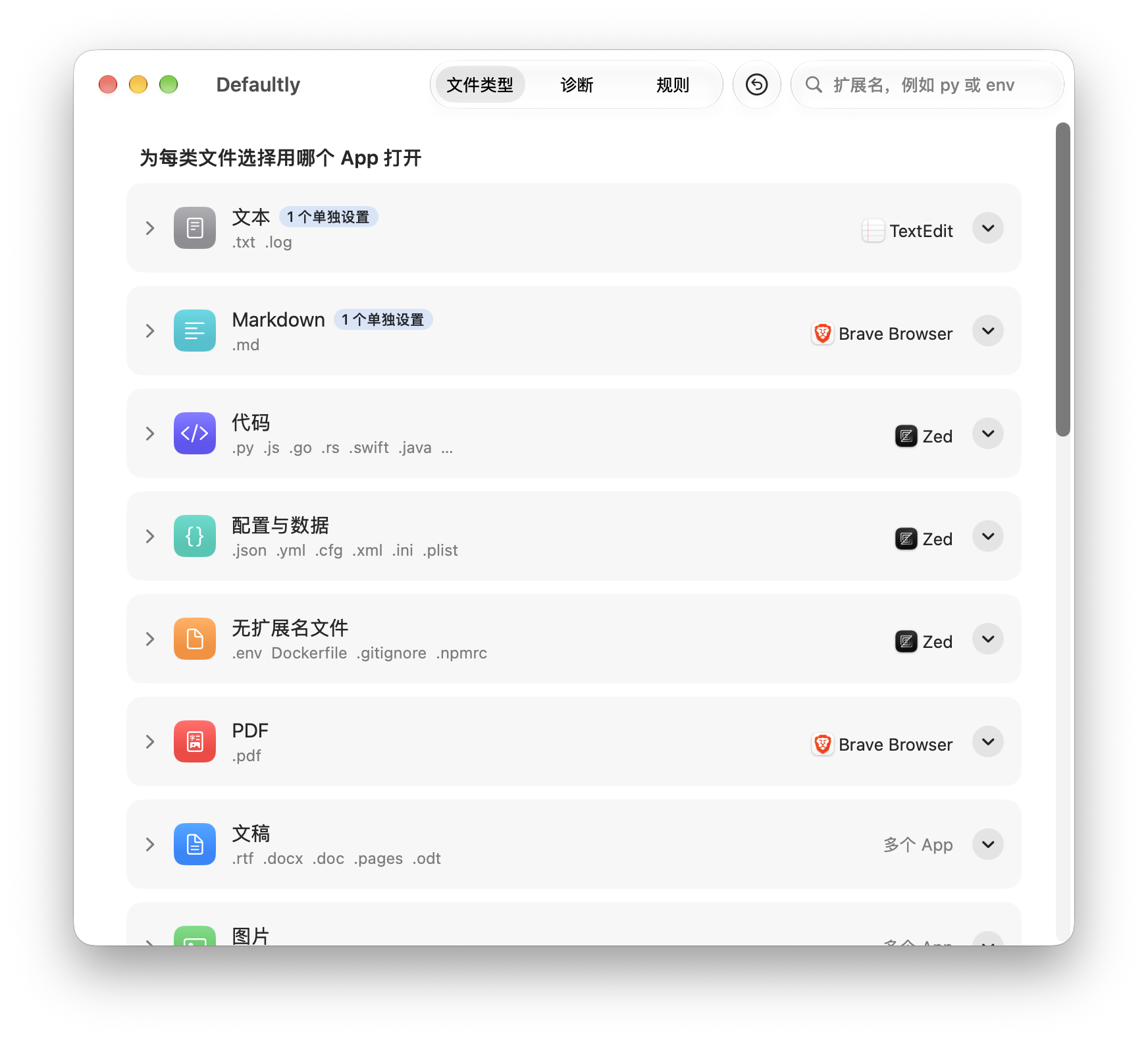
What Defaultly does
- Default apps by group: file types are grouped by purpose into Text, Markdown, Code, Config & Data, Files Without Extension, PDF, Documents, Images, Video, Audio and Archives. Each group has one app menu, so you set a whole group at once without confirming each format, and it takes effect in a few seconds.
- Files without an extension: open
.env,Dockerfile,.gitignoreand.npmrcin the editor you choose, even if that editor doesn’t declare support for them. - Per-format exceptions: expand a group and give a single format like
.mdor.pyits own app. Changing the group’s app later leaves them alone. - Custom extensions: add extensions that aren’t listed, including
.go,.rs,.kt,.dartand.lua, which macOS only knows as temporary types. - Default apps for links: web (
http,https), email (mailto), calendar subscriptions (webcal), phone calls, text messages, FaceTime, SSH, FTP and screen sharing can all get a default app. You can also pick Don’t Open, for example so a phone number on a web page no longer starts a call when clicked. - Diagnose: drop a file to see why it opens in a certain app, and switch to another one right there. Drop a folder to find files with their own Open With setting and clear them.
- Takeover alerts: when Xcode, a browser or another app takes over an association you set, Defaultly shows a banner with a one-click fix.
- Undo and restore: a snapshot is saved before every change. Undo with
⌘Z, or restore everything to how it was before you first opened Defaultly, with a preview of each change first. - Clean uninstall: the built-in uninstaller points every association back to its original app, then moves Defaultly to the Trash.
- 15 languages: the interface is available in English, Simplified Chinese, Traditional Chinese, Japanese and 11 more languages, switchable inside the app.
Defaultly doesn’t run in the background, has no login items, makes no network connections and collects no data.
Installing Defaultly
Requires macOS 26 Tahoe or later.
- Open the Releases page and download
Defaultly-<version>.dmgfrom Assets under the latest release. - Double-click the DMG to open it, then drag Defaultly onto the Applications folder in the same window.
- Eject the DMG and open Defaultly from the Applications folder.
There’s no installer and no administrator password needed. To update, download the new DMG and drag it over again to replace the old copy. Your settings, rules and snapshots are kept.
First launch: allowing an app that isn’t notarized
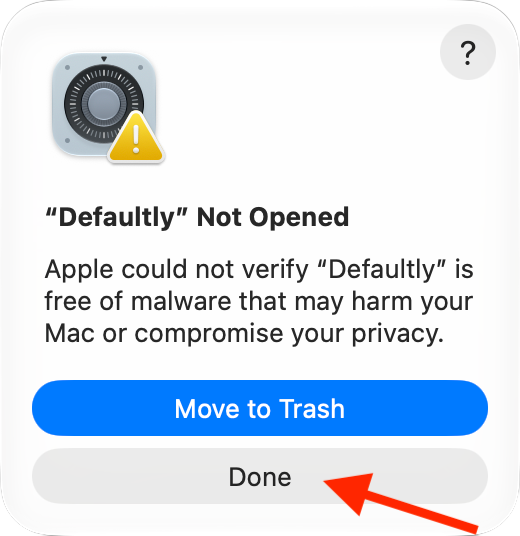
Defaultly isn’t notarized by Apple yet, so macOS blocks it the first time you open it. You only need to allow it once:
-
Double-click Defaultly. When macOS says it could not verify it, click Done. Don’t click the blue Move to Trash button.
-
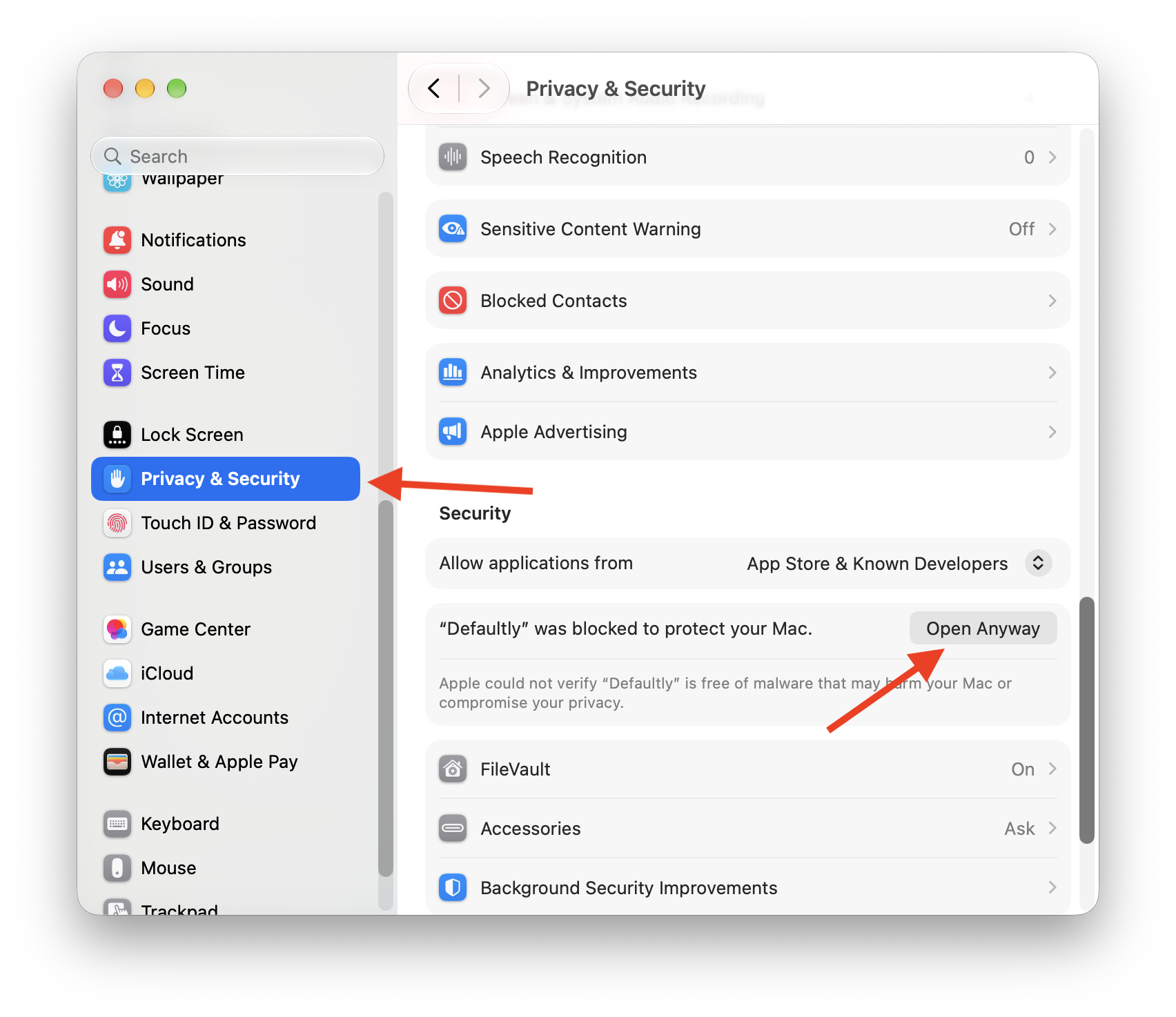
Open System Settings › Privacy & Security, scroll down to Security, and click Open Anyway next to Defaultly. The button stays there for about an hour after step 1.
-
Enter your login password or use Touch ID, then click Open Anyway once more in the dialog that follows.
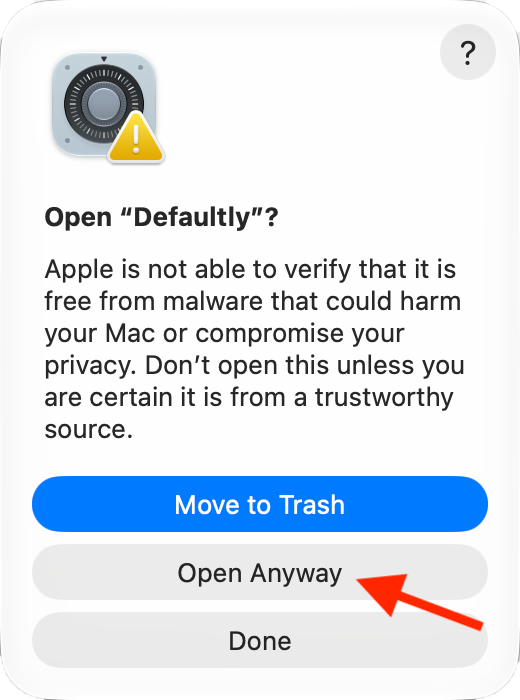
After that, Defaultly opens normally. Its built-in helper is allowed along with it, so files without an extension open without any further prompts. The screenshots show the English interface.
How to use it
Open .env and Dockerfile in your editor
On the File Types tab, find the Files Without Extension group, pick your editor (VS Code, Zed, Sublime Text, whatever you use) in the menu on the right, then click Apply at the bottom of the window. From then on, double-clicking .env, Dockerfile and similar files opens them straight in that editor.
Set the default editor for code files in bulk
Same idea: pick an app for groups like Code, Config & Data and Markdown, then click Apply. The Code group covers common languages such as JavaScript, TypeScript (.tsx), Python, Java, C, C++, C#, PHP, Ruby, Swift, Go, Rust, Kotlin, Dart, Lua, Shell, PowerShell and SQL, including .go and .rs, which have no official macOS type.
To make an exception for one format, click the group’s row to expand it and choose a different app in that format’s menu. The row gets marked Set separately. To have it follow the group again, choose Follow Group.
Search and add extensions
Type an extension like py or env into the search field at the top right and it jumps straight to the matching row. If the extension isn’t in any group, the search result offers Add…. Enter the extension, and Defaultly shows what macOS recognizes it as and suggests a group for it. Click Add and you’re done.
Set the default browser and email app
Below the file types there’s a Links card, where you choose which app opens web links, email, calendar subscriptions, phone calls, SSH and so on. When you change the browser, macOS still pops up a system dialog asking you to confirm. That’s there to stop browsers from being hijacked silently.
Apply, undo and restore
Every change is staged first. A bar at the bottom of the window shows how many changes are pending. Click Apply to make them take effect or Discard to drop them.
- Edit › Undo (
⌘Z) undoes the last apply, and you can undo several times in a row. - The round arrow button in the toolbar is Restore Initial. It points every file type and link Defaultly changed back to the app it used when you first opened Defaultly, and lists each change before doing anything.
- Settings › History keeps the last 20 snapshots, and any of them can be restored.
Find out why a file opens in a certain app
Switch to the Diagnose tab and drop a file into the dashed box. It shows which app opens the file and why: the file has its own Open With setting made in Finder, you chose that app for this kind of file, or nothing was set and macOS picked it on its own. Below the result, Use instead lets you switch to another app directly.
Drop a folder in instead, and Defaultly lists every file inside that has its own Open With setting. Select them and click Remove Their Own Settings, and those files go back to following the setting for their type.
How Defaultly works
Defaultly ships a tiny helper app, Defaultly Helper, inside its app bundle. When you choose an editor for files without an extension, Defaultly points public.data at the helper. When you open one of those files, the helper checks its content: text files go to the editor you chose, binary files are shown in Finder, and then it quits. It has no window, doesn’t stay running in the background, and exits after less than a second of idle time.
Types that your chosen app already supports, like .md and .py, are assigned to that app directly without going through the helper.
macOS doesn’t offer a public API for setting the default app for public.data, so Defaultly writes all file type changes to the LaunchServices preferences at once and restarts the lsd service once so they take effect. Apple doesn’t document this mechanism, so it may stop working after a system update. If a change doesn’t take effect, Defaultly falls back to the public API (which asks you to confirm each one), and for files without an extension you can use folder rules in Settings instead.
FAQ
How do I change the default app for files without an extension on a Mac?
Open Defaultly, choose an app for Files Without Extension, and click Apply. Files like .env and Dockerfile then open in that app.
Why doesn’t Finder’s “Change All” work for .env files?
macOS treats these files as generic data (public.data) and doesn’t allow changing their default app through the public API. Defaultly gets around this with its helper app.
Why aren’t .ts files in the Code group?
macOS recognizes .ts as a video format (MPEG-2 Transport Stream), and changing it would affect actual video files, so the Code group only includes TypeScript’s .tsx.
Can I undo all the changes? Yes. Defaultly records the original associations the first time it runs and never overwrites that record. Restore Initial points every changed type back to its original app.
How do I uninstall it? At the bottom of Settings › What Defaultly Wrote, click Uninstall Defaultly…. It restores every association it changed, then moves itself to the Trash.
For more details, including developer mode, rules and folder rules, see the project’s README.
GitHub repository: https://github.com/zhaojiannet/defaultly