How Do I Stop My Mac from Sleeping? Keep It Awake with One Click Using Tokimori, a Free Open-Source App That Also Opens and Quits Apps on a Schedule
Tokimori is a free, open-source menu bar app for macOS. It keeps your Mac from going to sleep — right now, on a weekly schedule, or while a particular app or command is running — and it opens or quits apps at the times you set. It has no Dock icon.
Use it to keep your Mac from sleeping during downloads, builds, video exports, AI agents, remote sessions or presentations. It uses the same mechanism as the built-in caffeinate command, adds a menu, schedules and app timers, and never moves the mouse.
Features
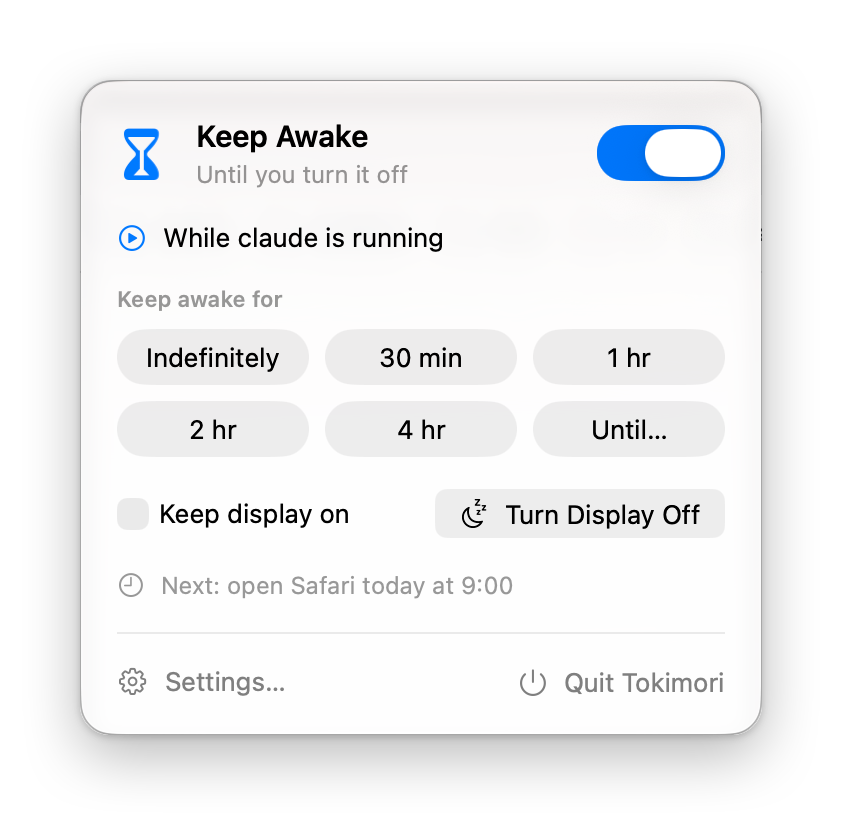
- Keep awake with one click. Turn it on indefinitely, for 30 minutes, 1, 2 or 4 hours, or until a time you pick. The system stays awake while the display can still turn off on its usual schedule.
- Keep the display on, or turn it off now. Optionally keep the display on as well. Turn Display Off darkens the screen while your Mac keeps running.
- Schedules. Keep your Mac awake every weekday from 09:00 to 18:00, for example. A period can end after midnight; it then belongs to the day it starts on.
- While running. Keep your Mac awake while an app is open, or while a command-line process runs — matched by its name (
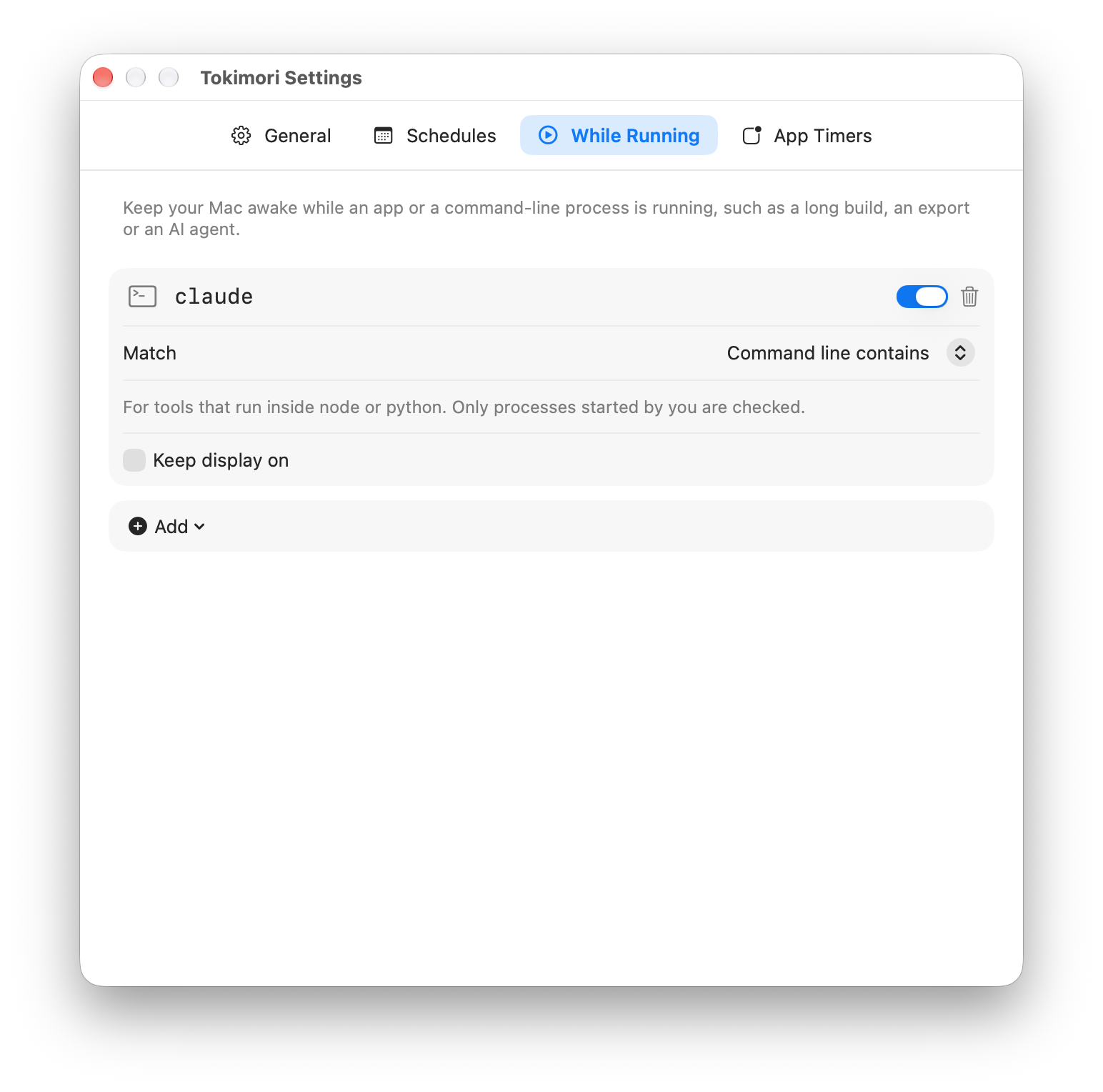
ffmpeg) or by text in its command line (claude, for tools that run insidenodeorpython). - App timers. Open or quit an app on chosen days at a set time. The same app can have several timers. If an app hasn’t quit after 30 seconds (for example because it’s asking you to save), Tokimori either notifies you or force quits it — you choose per timer.
- Battery protection. When your Mac runs on battery below a level you choose (20% by default), Tokimori stops keeping it awake. Schedules and running-app rules resume once you plug in.
- Shortcuts actions. Keep Mac Awake, Stop Keeping Mac Awake and Is Mac Being Kept Awake can be used in the Shortcuts app, for example in a Focus or Wi-Fi automation.
- 15 languages. English, Simplified Chinese, Traditional Chinese, Japanese, Korean, German, French, Spanish, Portuguese, Indonesian, Thai, Vietnamese, Arabic, Russian and Hindi, switchable inside the app.
Installation
Requires macOS 14 Sonoma or later.
- Open the Releases page and, under Assets of the latest release, download
Tokimori-<version>.dmg. - Double-click the downloaded DMG to open it.
- Drag Tokimori onto the Applications folder shown in the same window.
- Eject the DMG, then open Tokimori from the Applications folder. The first time, macOS asks you to allow it; see First launch below.
There is no installer and no administrator password is needed.
Updating: download the new DMG and drag Tokimori into Applications again, replacing the old copy. Your rules are kept. To see whether a newer version is out, click Check for Updates… in Settings › General.
Uninstalling: quit Tokimori from its menu and move it to the Trash. To also remove its rules and settings, delete ~/Library/Application Support/net.zhaojian.tokimori and ~/Library/Preferences/net.zhaojian.tokimori.plist. If you turned on Open at login, turn it off first, or remove Tokimori in System Settings › General › Login Items.
First launch
Tokimori isn’t notarized by Apple yet, so macOS blocks it the first time you open it. Allow it once:
-
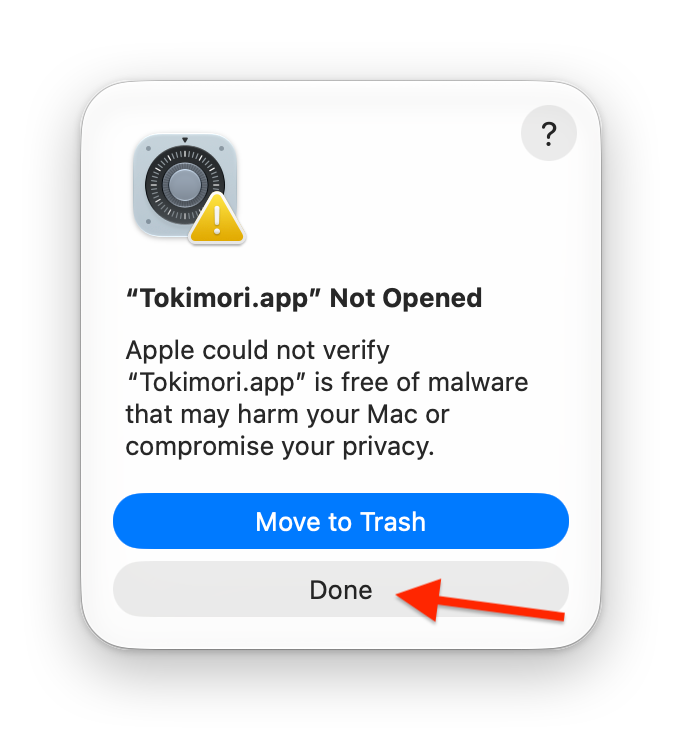
Double-click Tokimori. When macOS says it could not verify Tokimori, click Done. Don’t click the blue Move to Trash button.
-
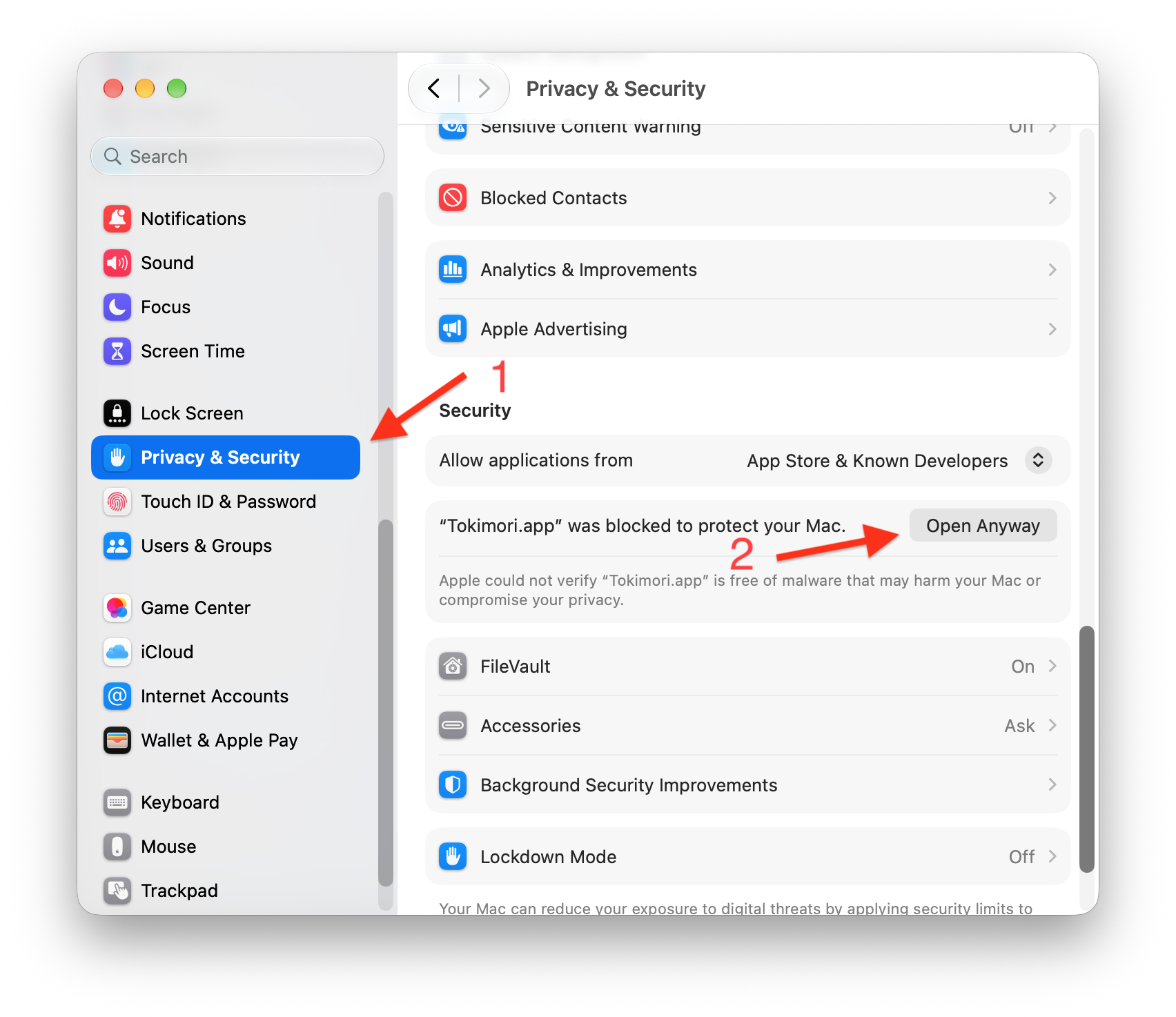
Open System Settings › Privacy & Security, scroll down to Security, and click Open Anyway next to Tokimori. The button is there for about an hour after step 1.
-
Enter your login password or use Touch ID. In the dialog that follows, click Open Anyway again.
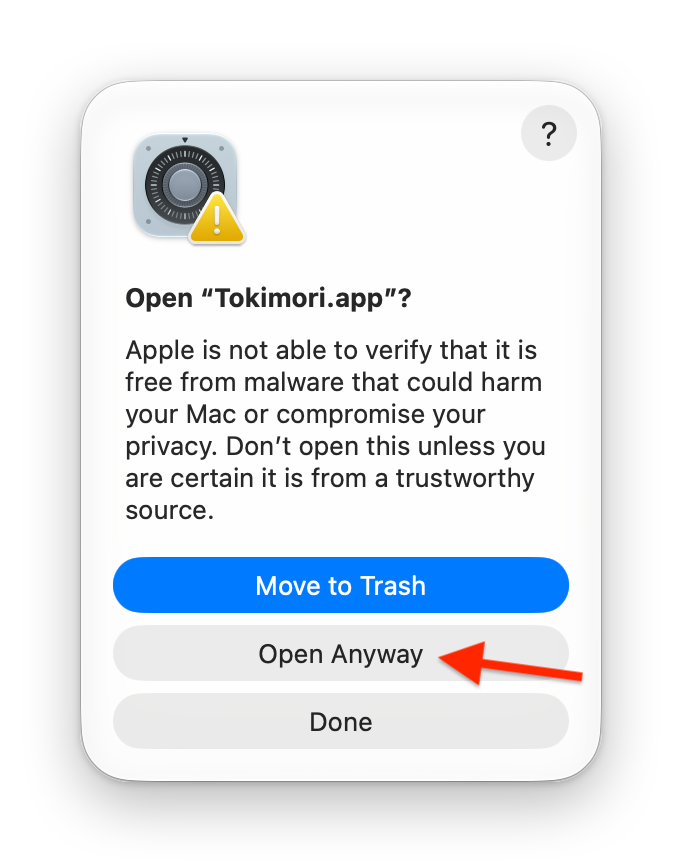
After this, Tokimori opens normally. The DMG also contains these steps in First Launch.txt.
Usage
Click the hourglass in the menu bar. While something is keeping your Mac awake, its sand runs down and the hourglass turns over every 30 minutes; when your Mac can sleep as usual, it stands still with all the sand at the top.
- Keep Awake turns keeping awake on or off. Below it, Tokimori lists what is keeping your Mac awake right now and until when.
- The duration buttons start keeping awake for that long. Until… lets you pick a time; a time that has already passed today means tomorrow.
- Keep display on applies to keeping awake that you turn on yourself. Schedules and running-app rules each have their own setting. The display stays on if any active source asks for it.
- The last line shows the next app timer.
If you turn keeping awake off while a schedule is active, Tokimori asks what you mean:
- Stop Until 18:00 — stays off for the rest of this period; the schedule turns on again next time.
- Turn Off This Schedule — the schedule is turned off until you turn it back on in Settings.
- Stay Awake — changes nothing.
Turning it off also pauses running-app rules that are active, until that app or process quits.
Open Settings… to manage rules. Each rule is a card you edit in place: changes take effect right away, the switch on the card turns it on or off, and the trash button deletes it.
General: open at login, show the remaining time next to the menu bar icon, battery protection, language, updates.
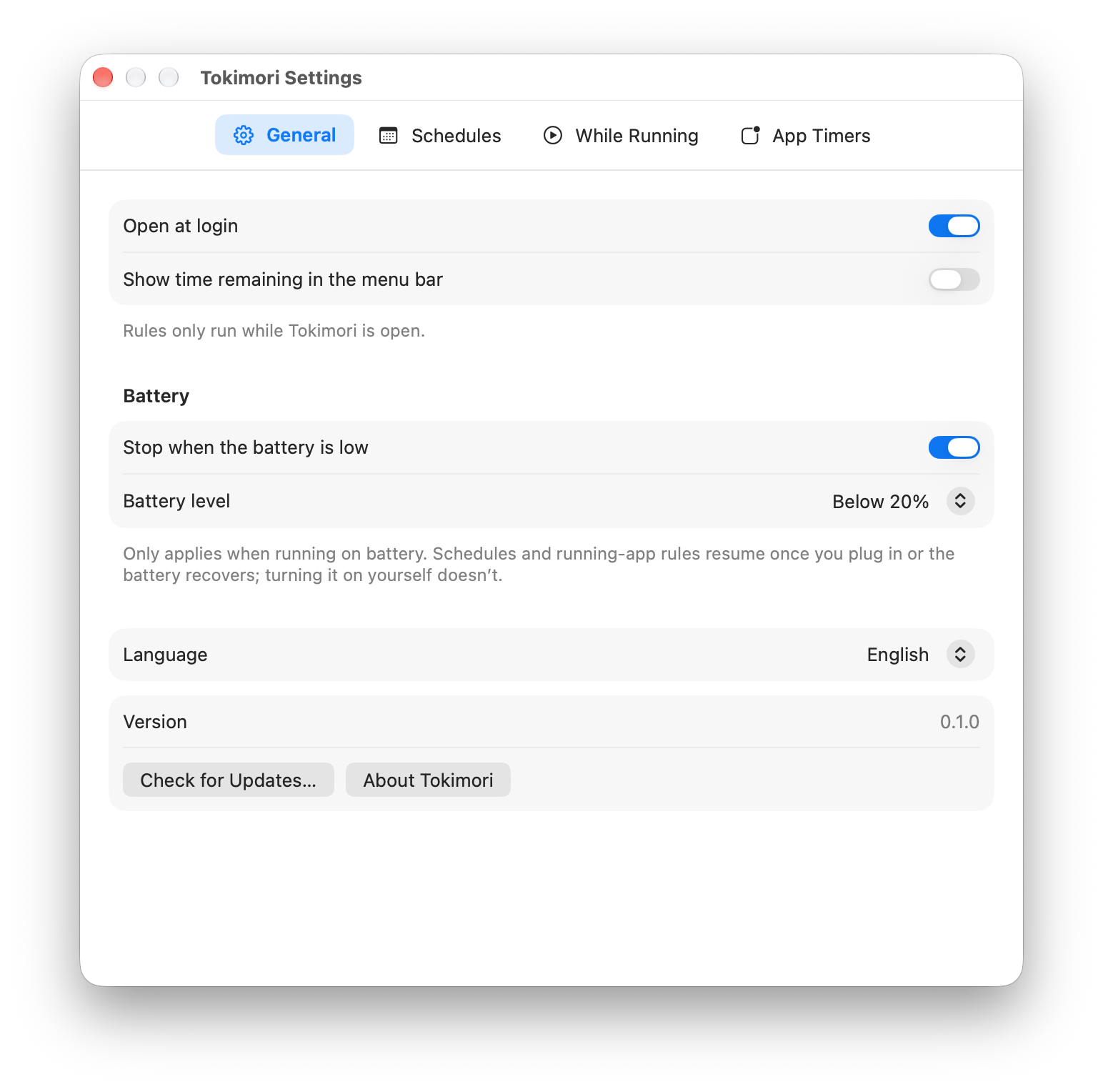
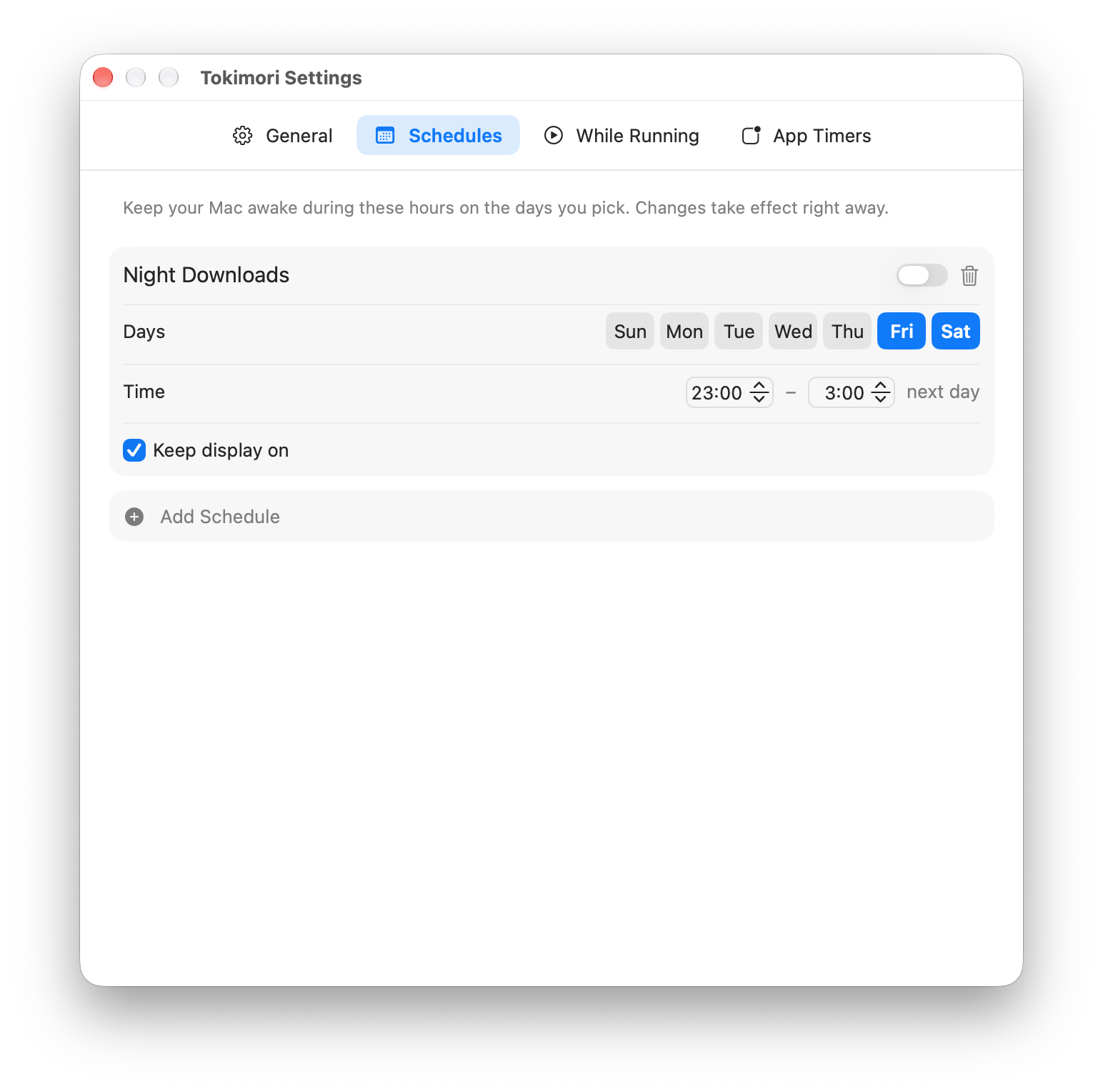
Schedules: Add Schedule adds weekdays 09:00–18:00; change the name, days and times on the card.
While Running: Add lists the apps that are open right now; pick one, choose Other App…, or choose Command-Line Process… and type its name or part of its command line.
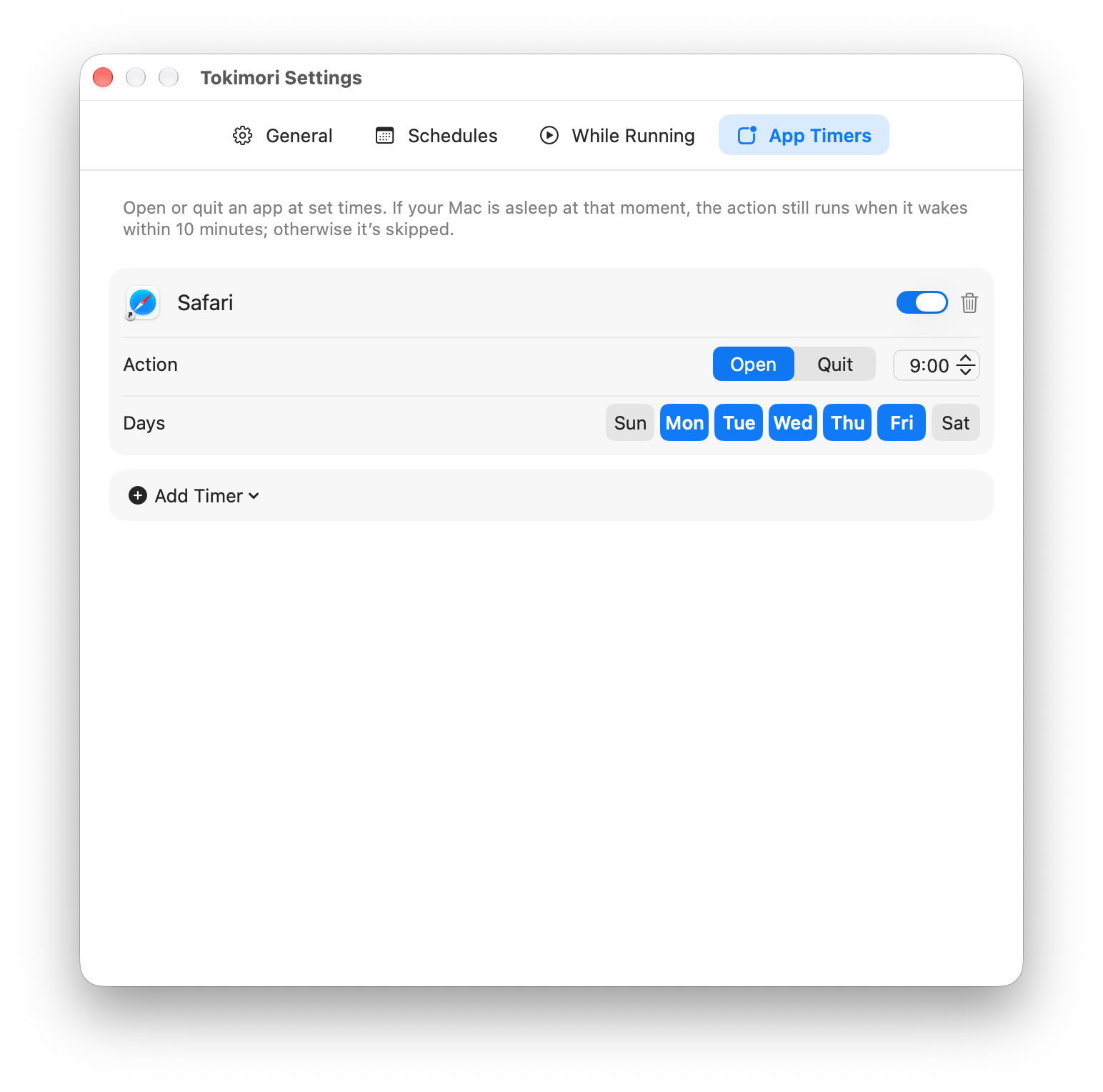
App Timers: Add Timer lists the apps that are open right now. A new timer opens the app at 09:00 on weekdays, or quits it at 18:00 if the app already has an opening timer. For quitting, choose what happens if the app hasn’t quit after 30 seconds. A timer that would open and quit the same app at the same minute as another one can’t be turned on.
When you add your first rule, Tokimori asks whether to open at login, because rules only run while it’s open. Quitting Tokimori while rules are on asks for confirmation once (you can turn the question off).
How it works
- Keeping awake uses an IOKit power assertion of type
PreventUserIdleSystemSleep, the same mechanism ascaffeinate -i. Keep display on addsPreventUserIdleDisplaySleep. Runpmset -g assertionsin Terminal to see them. Tokimori doesn’t move the mouse or runcaffeinate. - Assertions belong to the Tokimori process, so macOS releases them automatically if Tokimori quits or crashes. Your Mac can never stay awake because of a leftover.
- Tokimori recalculates when a period starts or ends, when your Mac wakes, when the time or time zone changes, when apps open or quit, and every 30 seconds for processes and battery level.
- An app timer that falls while your Mac is asleep or Tokimori isn’t running is still carried out if Tokimori notices within 10 minutes; older ones are skipped, so you don’t get a burst of outdated opens and quits when you open the lid in the morning.
- Opening uses
NSWorkspace; quitting asks the app to quit normally, and force quitting usesNSRunningApplication.forceTerminate(). macOS doesn’t allow sandboxed apps to quit other apps, so Tokimori isn’t sandboxed and isn’t on the Mac App Store. - Rules are stored in
~/Library/Application Support/net.zhaojian.tokimori/configuration.json. The only network request is the update check, and only when you click it.
FAQ
Does it keep my MacBook awake with the lid closed? No. Tokimori only prevents idle sleep; closing the lid puts a MacBook straight to sleep, unless an external display, keyboard and power are connected (clamshell mode).
Can it wake my Mac to run an app timer?
No. Waking a sleeping Mac at a set time needs administrator rights (pmset schedule). Timers run while your Mac is awake, with the 10-minute grace period described above.
Why does the display still turn off? By default only system sleep is prevented, which is what you usually want for downloads, builds and remote sessions. Turn on Keep display on for presentations or monitoring.
Does it work with Shortcuts automations on macOS 26? Yes. Use the Tokimori actions in a personal automation, such as “When I connect to Wi-Fi … Keep Mac Awake”.
Known limitations
- Turn Display Off may also lock your Mac, if you set System Settings › Lock Screen to require a password after the display turns off.
- Matching by command line only sees processes started by your user account.
- App timers work at minute precision and depend on Tokimori running.
Screenshots show the English interface.
GitHub repository: https://github.com/zhaojiannet/tokimori