EndeavourOS Daily Use and Common Software Installation
Recently, due to issues with the WeChat package in AUR, I wanted to switch back to Debian-based distros. However, after trying several different Linux distributions, I still felt that none were as smooth to use as EndeavourOS. Although both WeChat Linux and QQ Linux versions work normally now, I wanted to be able to choose Btrfs partitioning and set up hibernation during installation - it seems only EndeavourOS can satisfy this requirement. After all the tinkering, I’m back.
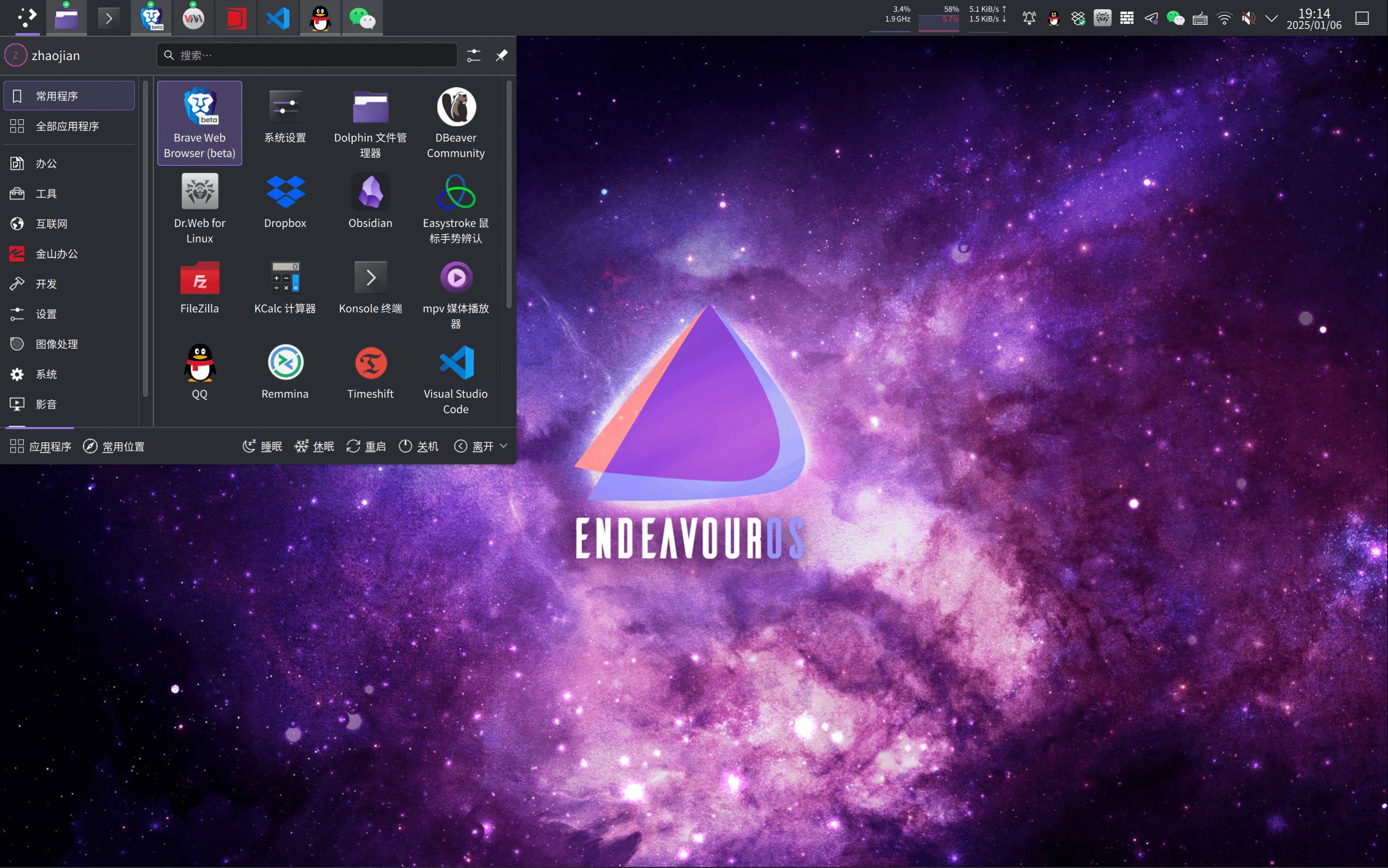
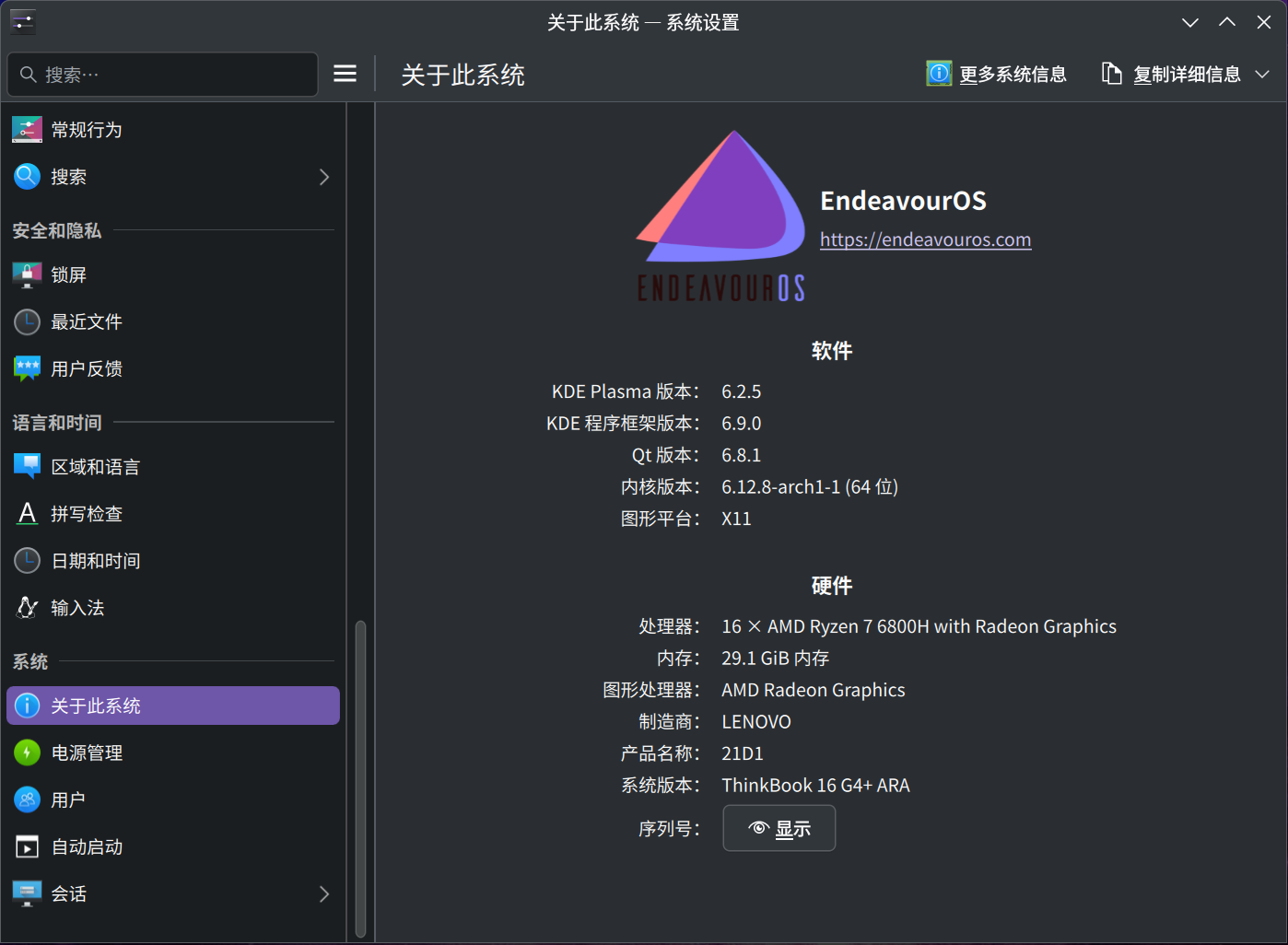
System Environment:
Version: EndeavourOS (Endeavour_neo-2024.09.22)
Desktop Environment: KDE Plasma 6.2.5
Software Usage Principles
Channel Priority: Built-in Software Center (Discover) > Official Website > Flathub > AUR > Third-party Websites
Prefer software packages that provide AppImage format
1. Enable Bluetooth and Set to Start on Boot
On my computer, Bluetooth has always had issues. EndeavourOS is okay - you just need to set it to start on boot.
sudo systemctl start bluetoothsudo systemctl enable bluetooth2. Install Timeshift
After using Btrfs partitioning, Timeshift can backup more conveniently, so you don’t have to worry about breaking things while experimenting.
yay -S timeshift3. Install Fcitx5 Input Method
fcitx5-rime
The Chinese support in fcitx5-chinese-addons is already quite good, especially the cloud pinyin feature. However, fcitx5-chinese-addons loads the entire dictionary into RAM, increasing memory usage, and cannot directly input email addresses or URLs. So I chose fcitx5-rime.
Linux Pinyin Input Method Dictionary Causing Abnormal Memory Usage in fcitx5
yay -S fcitx5-im fcitx5-rime fcitx5-mozcfcitx5-chinese-addons
yay -S fcitx5-im fcitx5-chinese-addons fcitx5-mozcInstall additional dictionaries, using fcitx5-chinese-addons as an example:
yay -S fcitx5-pinyin-zhwiki fcitx5-pinyin-sougou-dict-git fcitx5-pinyin-moegirl fcitx5-pinyin-custom-pinyin-dictionary4. Install Browser
Here I’m using the beta version from AUR. On one hand, I can experience new features earlier; on the other hand, I don’t like that orange-red color. Previously, because Chrome was about to stop supporting Manifest v2 extensions, I chose Brave browser. Brave’s default rules can block video ads on YouTube and other sites, but there are two things I’m not satisfied with: first, the built-in translation module is too laggy, unusable in China and too slow abroad; second, the sync method is strange - sometimes it syncs immediately, sometimes it doesn’t sync for a long time.
yay -S brave-beta-binRecently, after switching systems several times, Brave failed to sync. There were cases before where it took over 24 hours to sync, but this time it’s been 2 days without syncing. I’m preparing to switch to Chrome.
yay -S google-chrome-beta5. Set Numeric Keypad to Auto-Start on Boot
You can set NumLock in System Settings - Keyboard, but it only works after entering the system. If you want to use the numeric keypad to enter your password at the login screen, it won’t work. EndeavourOS uses SDDM by default, so you need to modify /etc/sddm.conf and add the following content.
[General]Numlock=on6. Install Development Software
Remmina, FileZilla, DBeaver Community, Visual Studio Code (AUR)
yay -S remmina filezilla dbeaver visual-studio-code-bin7. Download and Configure Official Linux Versions of QQ and WeChat
Due to issues with the wechat package in AUR, I don’t want to use AUR anymore. Downloading and configuring it myself works fine. Since I often switch between different systems, I created separate folders for WeChat and QQ, saving the configuration files. After installing the system, I just need to copy them to /usr/share/applications/.
For detailed instructions, see: Installing New Linux WeChat and QQ on EndeavourOS, Manjaro and Other Arch-based Linux
sudo cp /home/zhaojian/Cores/Tools/Linux/QQ/qq.desktop /usr/share/applications/qq.desktop
sudo cp /home/zhaojian/Cores/Tools/Linux/WeChat/wechat.desktop /usr/share/applications/wechat.desktopOfficial QQ Linux Version Official WeChat Linux Version
8. Install Office and Other Common Software
Due to text appearing blank when exporting PDF files with WPS Linux version, WPS is no longer the only option. I’m also using ONLYOFFICE as a complement. Since ONLYOFFICE has an AppImage format package, I’m now migrating from WPS Office for Linux to ONLYOFFICE Desktop Editors.
WPS
yay -S wps-office-cn wps-office-mui-zh-cn ttf-wps-fontsONLYOFFICE https://www.onlyoffice.com/download-desktop.aspx
9. Install Fonts
Source Han Sans is an open-source font jointly developed by Adobe and Google. Adobe’s name: Source Han Sans; Google’s name: Noto Sans CJK; commonly called Source Han Sans in Chinese - they’re all the same. Generally, choosing a Chinese system will install it by default, but there are some cases, such as WPS and WeChat, that need it, so reinstall it.
yay -S adobe-source-han-sans-cn-fonts noto-fonts-cjk noto-fonts-emoji noto-fonts-extra10. Install Virtual Machine Software QEMU and virt-manager
Virt-Manager is the frontend, providing a convenient GUI. QEMU is the backend, providing underlying support. Currently, it seems faster than VMware Workstation Pro.
For detailed instructions, see: Installing QEMU+KVM, libvirt, Virt-Manager on EndeavourOS, Manjaro and Other Arch-based Linux
11. Install Dropbox, easystroke (Mouse Gestures) from AUR, and Xmind
Previously in China, Dropbox couldn’t be used for unknown reasons. Now with unrestricted network access, Dropbox feels more convenient to use. Additionally, easystroke has always been the only software I use and need on Linux. Because Linux’s right-click trigger principle differs from Windows, browser mouse gesture extensions don’t work properly on Linux. You need to install easystroke in the system environment. However, the easystroke developer hasn’t updated it for years. Especially under Wayland, although it can barely be used, it cannot display mouse gesture trails at all. Although there’s a Mouse-Actions that claims to be a replacement in several easystroke GitHub pages, after using it I found more unknown errors, especially lacking basic usage instructions, memory usage increases over time, and it stops running with unknown errors. Combined with the fact that Wayland won’t be fully adopted anytime soon, I’ll stick with X11 and continue using easystroke from AUR.
yay -S dropbox easystroke xmind12. Download and Configure Obsidian
sudo nano /usr/share/applications/obsidian.desktop[Desktop Entry]Name=ObsidianExec=/home/zhaojian/Cores/Tools/Obsidian/Obsidian.AppImage %UTerminal=falseType=ApplicationIcon=/home/zhaojian/Cores/Tools/Obsidian/obsidian.pngStartupWMClass=obsidianComment=ObsidianMimeType=x-scheme-handler/obsidian;Categories=Office;