How to Install WeChat and QQ on EndeavourOS, Manjaro and Other Arch-based Linux
Recently, due to the drama surrounding the WeChat package on AUR, I switched back to Debian. After using it for a few days, I found myself a bit uncomfortable. After trying several different Debian-based distributions, I still felt that EndeavourOS was more user-friendly. So I switched back to EndeavourOS, but I really couldn’t understand and didn’t want to get involved in the AUR wechat drama anymore.
I chose the most original and simplest method: download the AppImage format software package from the official website and create start menu shortcuts manually.
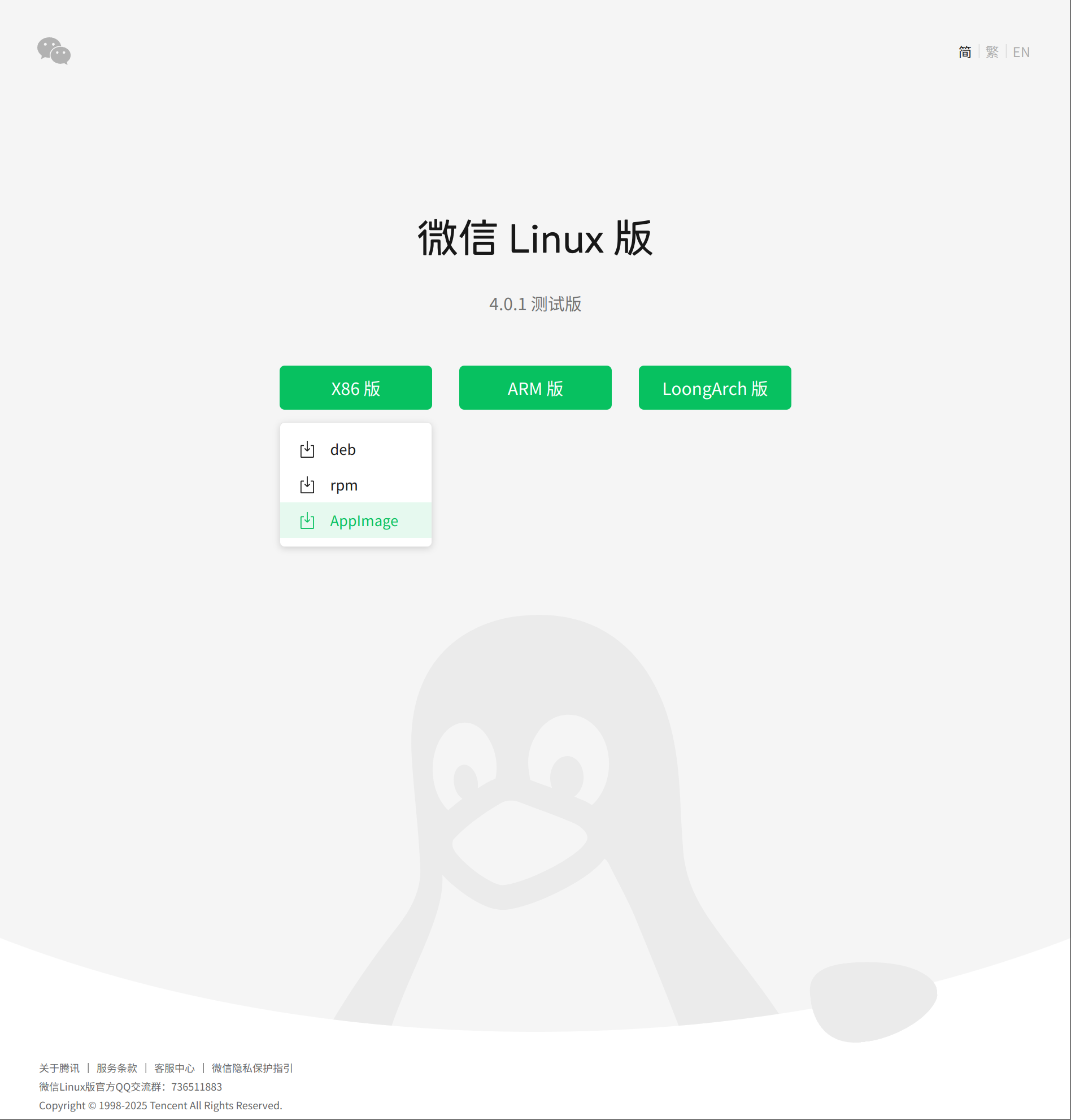
WeChat Linux Version
1. Download the latest official WeChat Linux version. It’s recommended to save it to a non-default download directory.
WeChat Linux Official Website: https://linux.weixin.qq.com/
WeChat HD logo (unofficial): https://github.com/zhaojiannet/zhaojiannet.github.io/tree/main/uploads/2025/01/wechat_logo.png

2. Create Start Menu Shortcut
Use nano to create wechat.desktop in the /usr/share/applications directory
sudo nano /usr/share/applications/wechat.desktopwechat.desktop file content:
[Desktop Entry]Encoding=UTF-8Type=Application#Application nameName=微信#Icon path (recommended to place together with the downloaded AppImage package)Icon=/home/zhaojian/Cores/Tools/Linux/WeChat/wechat_logo.png#Whether to open terminal on launchTerminal=false#AppImage file path (the path where you saved the AppImage package)Exec=/home/zhaojian/Cores/Tools/Linux/WeChat/WeChatLinux_x86_64.AppImage#CategoryCategories=Network;#DescriptionComment=微信 Linux桌面版Press Ctrl + X, Y, Enter to save.
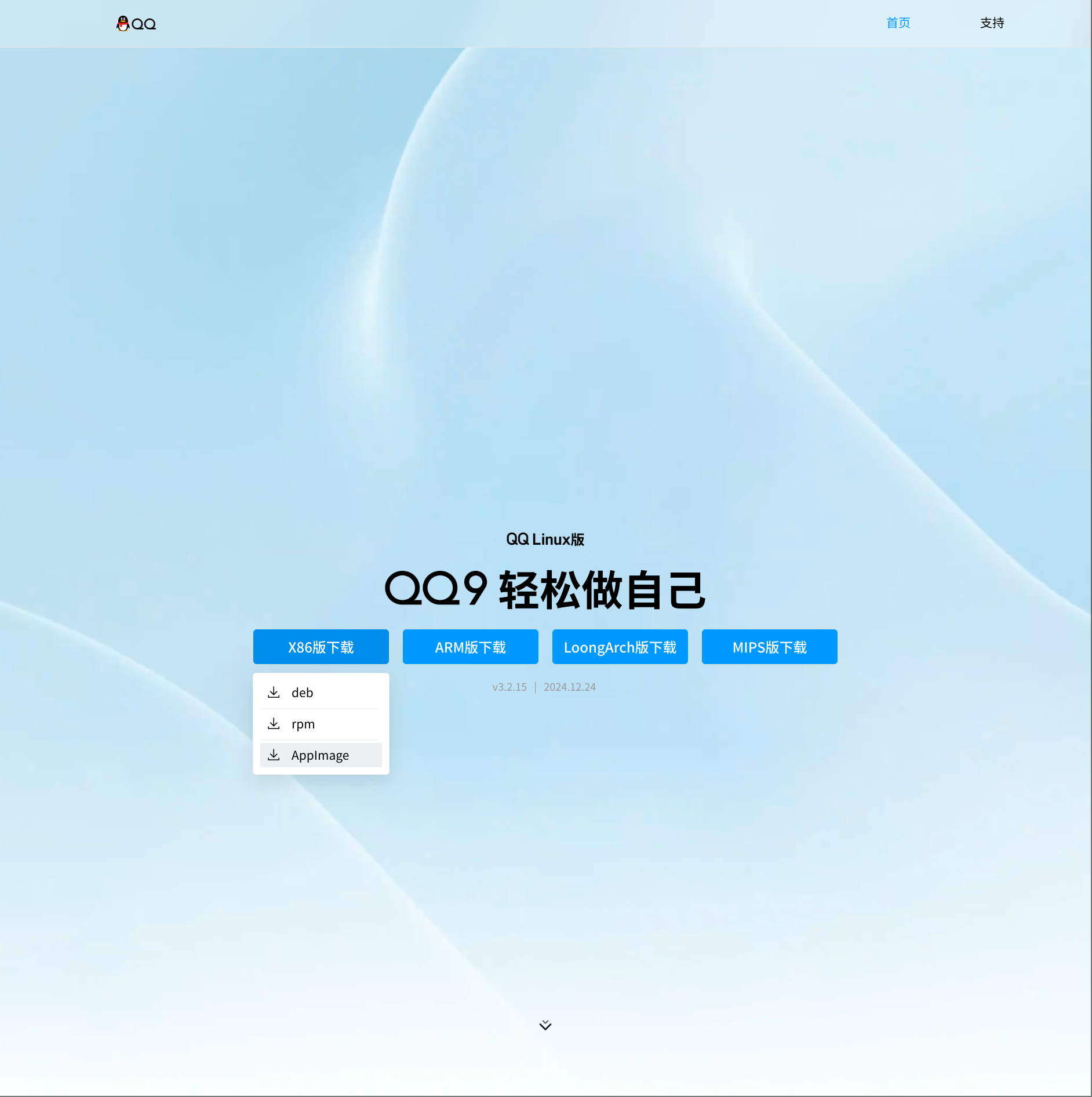
QQ Linux Version
1. Download the latest official QQ Linux version. It’s recommended to save it to a non-default download directory.
QQ Linux Official Website: https://im.qq.com/linuxqq/
QQ HD logo (unofficial): https://github.com/zhaojiannet/zhaojiannet.github.io/tree/main/uploads/2025/01/qq_logo.png

2. Create Start Menu Shortcut
Use nano to create qq.desktop in the /usr/share/applications directory
sudo nano /usr/share/applications/qq.desktopqq.desktop file content:
[Desktop Entry]Encoding=UTF-8Type=Application#Application nameName=QQ#Icon path (recommended to place together with the downloaded AppImage package)Icon=/home/zhaojian/Cores/Tools/Linux/QQ/qq_logo.png#Whether to open terminal on launchTerminal=false#AppImage file path (the path where you saved the AppImage package)Exec=/home/zhaojian/Cores/Tools/Linux/QQ/QQ_3.2.15_241224_x86_64_01.AppImage#CategoryCategories=Network;#DescriptionComment=QQ Linux桌面版Press Ctrl + X, Y, Enter to save.
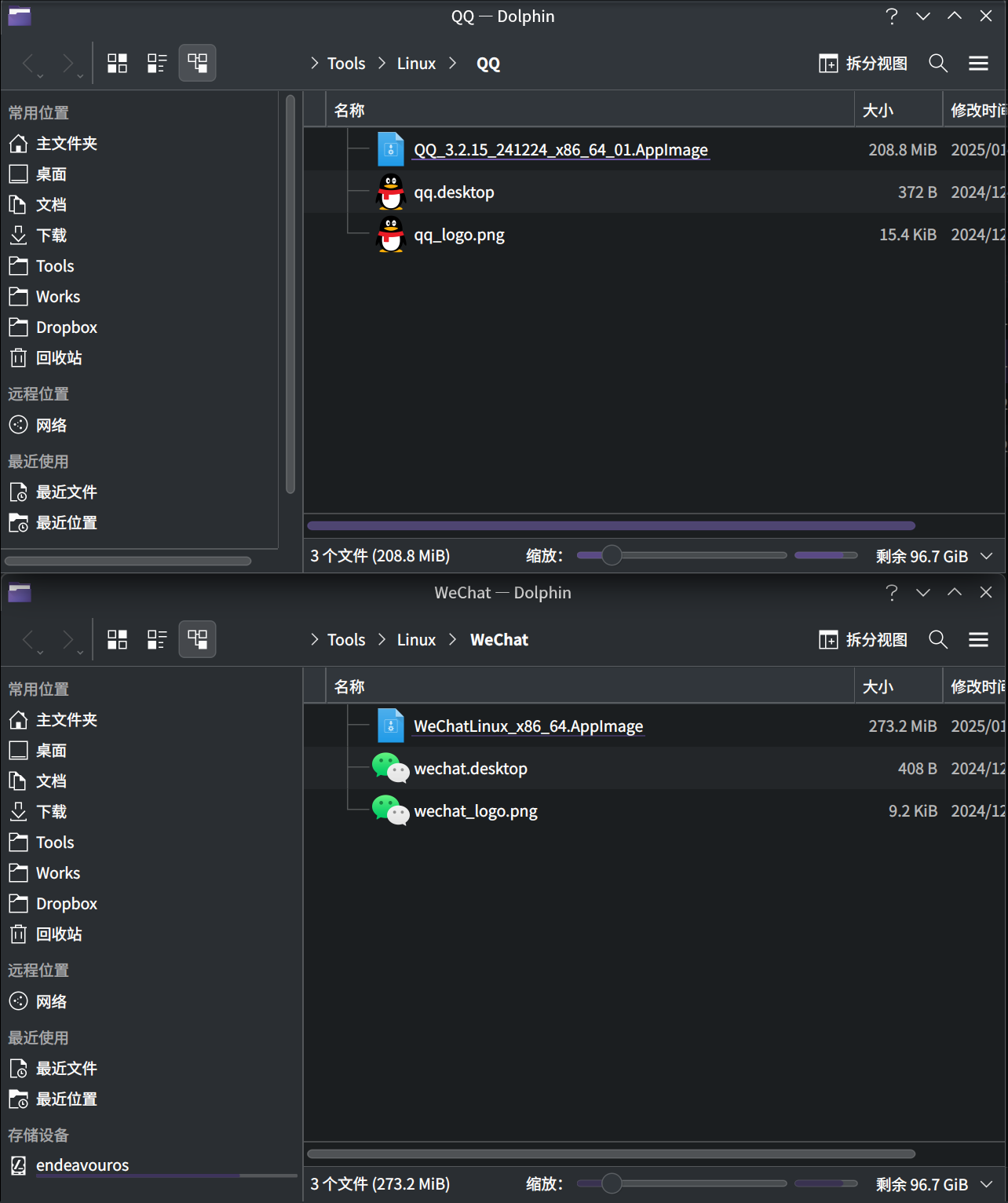
My final directory structure looks like this, with AppImage, desktop, and png files saved together. This makes migration much easier after switching systems - you just need to copy one desktop file to the /usr/share/applications directory.
Tencent’s latest Linux 4.0.1 beta version is continuously improving and can now be used normally. If you encounter any issues during use, you can join the official WeChat Linux QQ group: 736511883 for feedback. With QQ Linux version already working well, Tencent products now only lack perfect Linux support for WeCom and Tencent Meeting.