IT Course HTML Basics 014_Multimedia and Embedded Content
Multimedia and Embedded Content Using audio and video tags in HTML5 Applications of embedded content, such as maps, embedded webpages, etc.
Images
Images are a very important media type that can enhance user experience and make information delivery more intuitive and vivid. In HTML, we use the <img> tag to insert images. The <img> tag is a self-closing empty tag, meaning it has no closing tag. The image address is specified through the src (source) attribute of the <img> tag.
Example:
<img src="https://www.zhaojian.net/images/zhaojian-avatar.png" alt="Image description">Effect:

The image element can also contain the following attributes:
width: Specifies the width of the image.height: Specifies the height of the image.align: Specifies the alignment of the image.border: Specifies the border of the image.hspace: Specifies the horizontal spacing between the image and surrounding elements.vspace: Specifies the vertical spacing between the image and surrounding elements.ismap: Specifies whether the image is a map image.
Setting Image Size
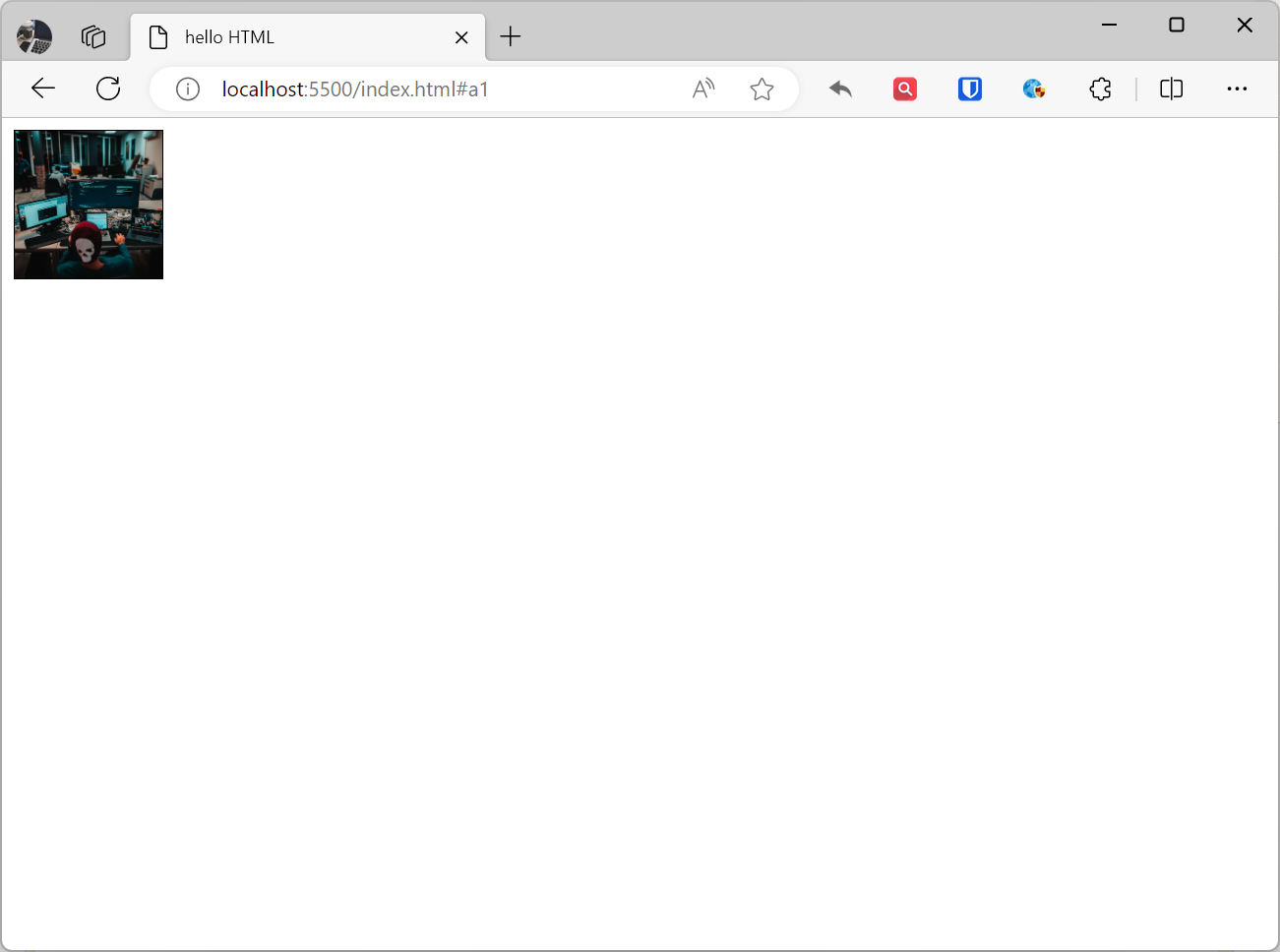
We can set the width and height of an image through the width and height attributes of the <img> tag. The values of these two attributes can be specific pixel values or percentages.
Example:
<img src="https://www.zhaojian.net/images/zhaojian-avatar.png" alt="Image description" width="100" height="100" align="center" border="1">Effect:
Setting Alternative Text
Alternative text (alt text) is used to display when an image cannot be loaded, and is also used by screen readers to read out the content of the image, helping visually impaired users understand the image. We set the alternative text through the alt attribute of the <img> tag.
Example:
<img src="https://www.zhaojian.net/images/zhaojian-avatar1.png" alt="This text displays when image cannot be found">Effect:
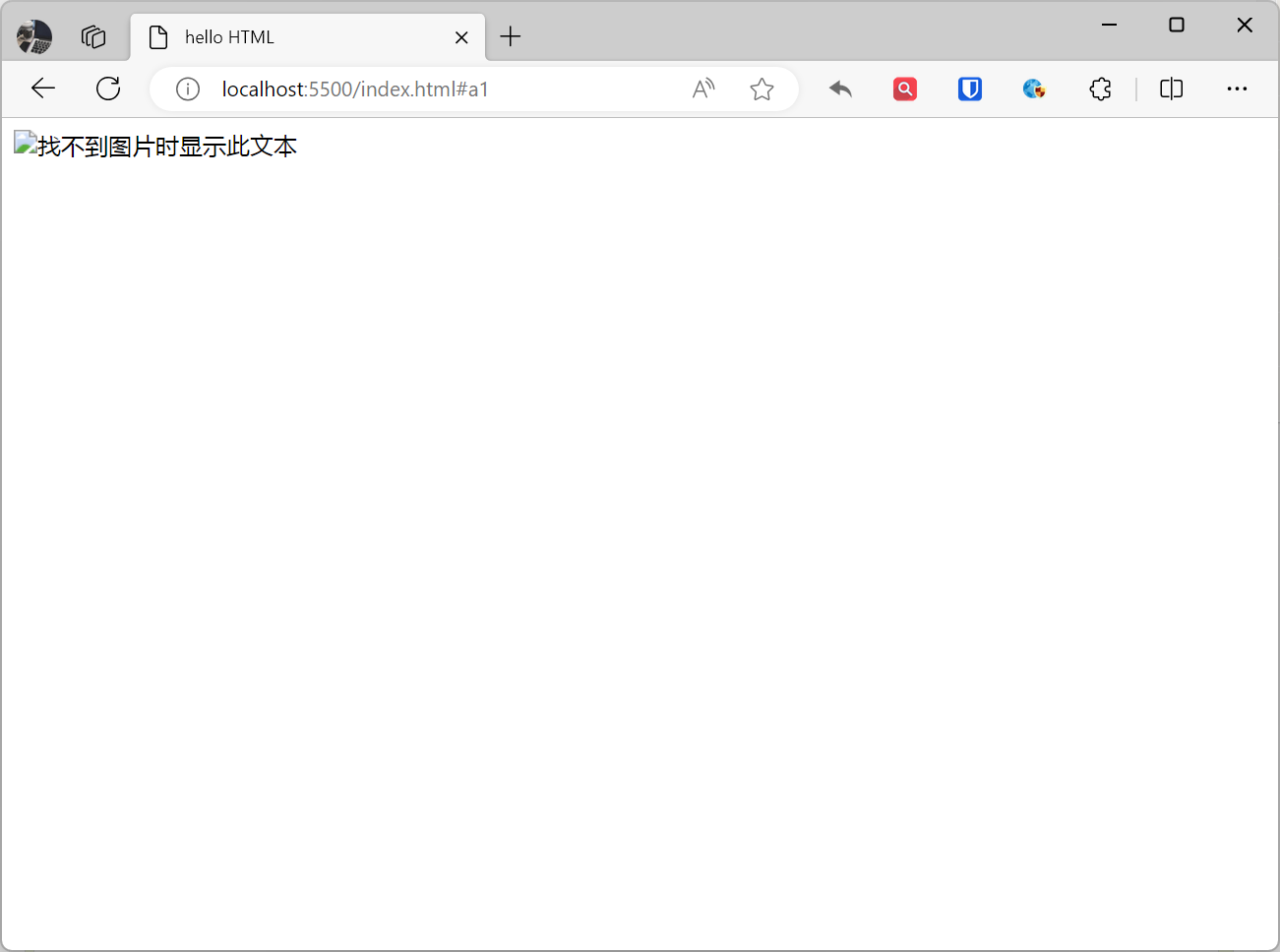
Image Links
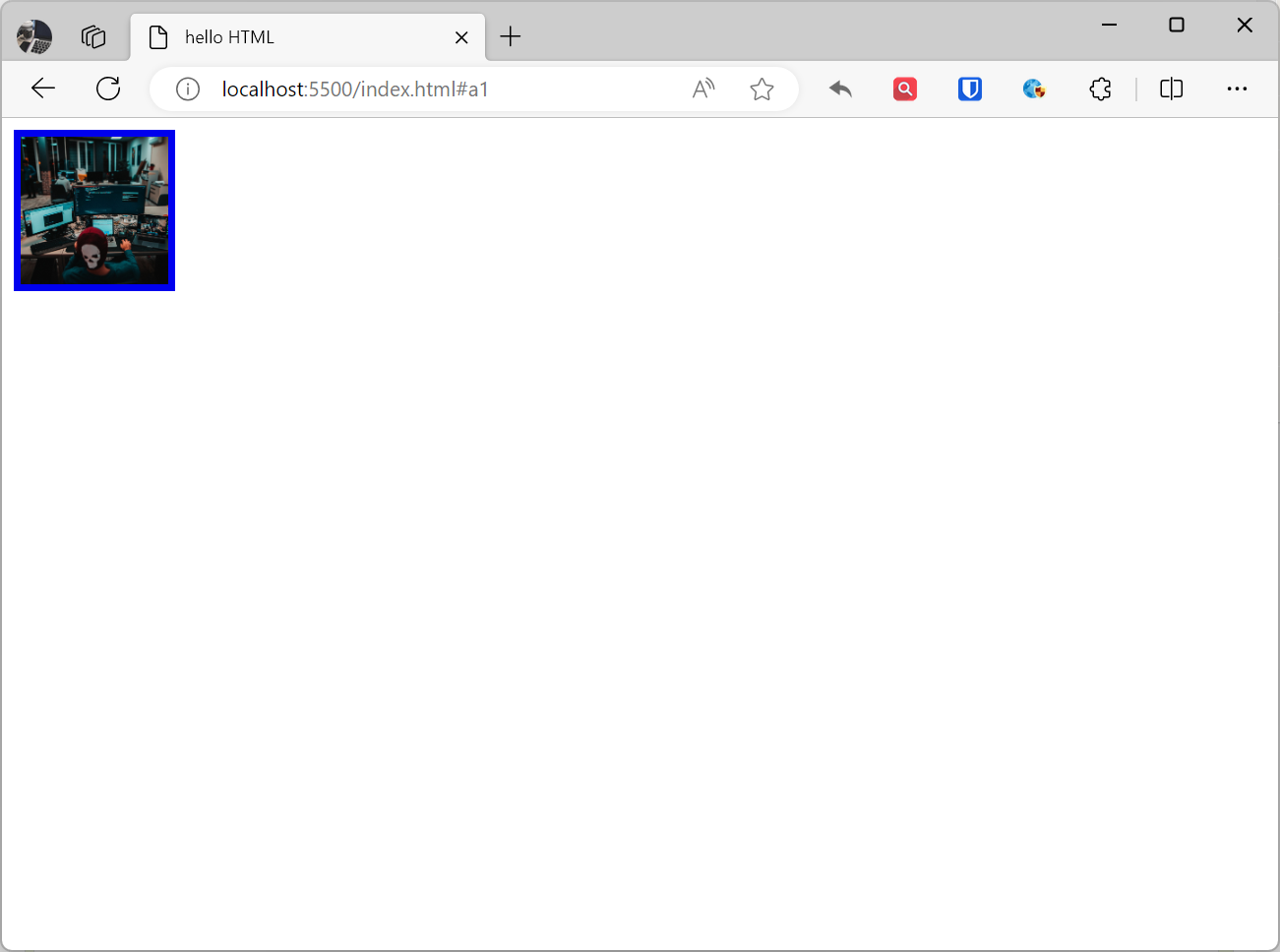
Images can also be used as hyperlinks. We just need to place the <img> tag inside an <a> tag to create an image link.
Example:
<a href="https://www.zhaojian.net/"> <img src="https://www.zhaojian.net/images/zhaojian-avatar.png" alt="Image description" width="100" height="100" align="center" border="5"></a>Effect:
[!Summary]
- Use
widthandheightattributes to set the width and height of images. The values of these two attributes can be specific pixel values or percentages.- If you set both the width and height of an image, and the ratio of these two values doesn’t match the image’s original ratio, the image may be stretched or compressed, causing distortion.
- If an image link has a border set, the border defaults to the same color as the hyperlink.
Video
HTML video elements are used to embed videos in web pages. The tag for video elements is <video>.
Example:
<video src="https://www.zhaojian.net/images/mp4.mp4" controls> <source src="video.webm" type="video/webm"> <source src="video.ogg" type="video/ogg"></video>Effect:

Video elements can also contain the following attributes:
width: Specifies the width of the video.height: Specifies the height of the video.poster: Specifies the poster frame of the video.autoplay: Specifies whether the video should automatically play when loaded.loop: Specifies whether the video should loop.muted: Specifies whether the video should be muted.preload: Specifies whether the video should be preloaded when loading.
Example:
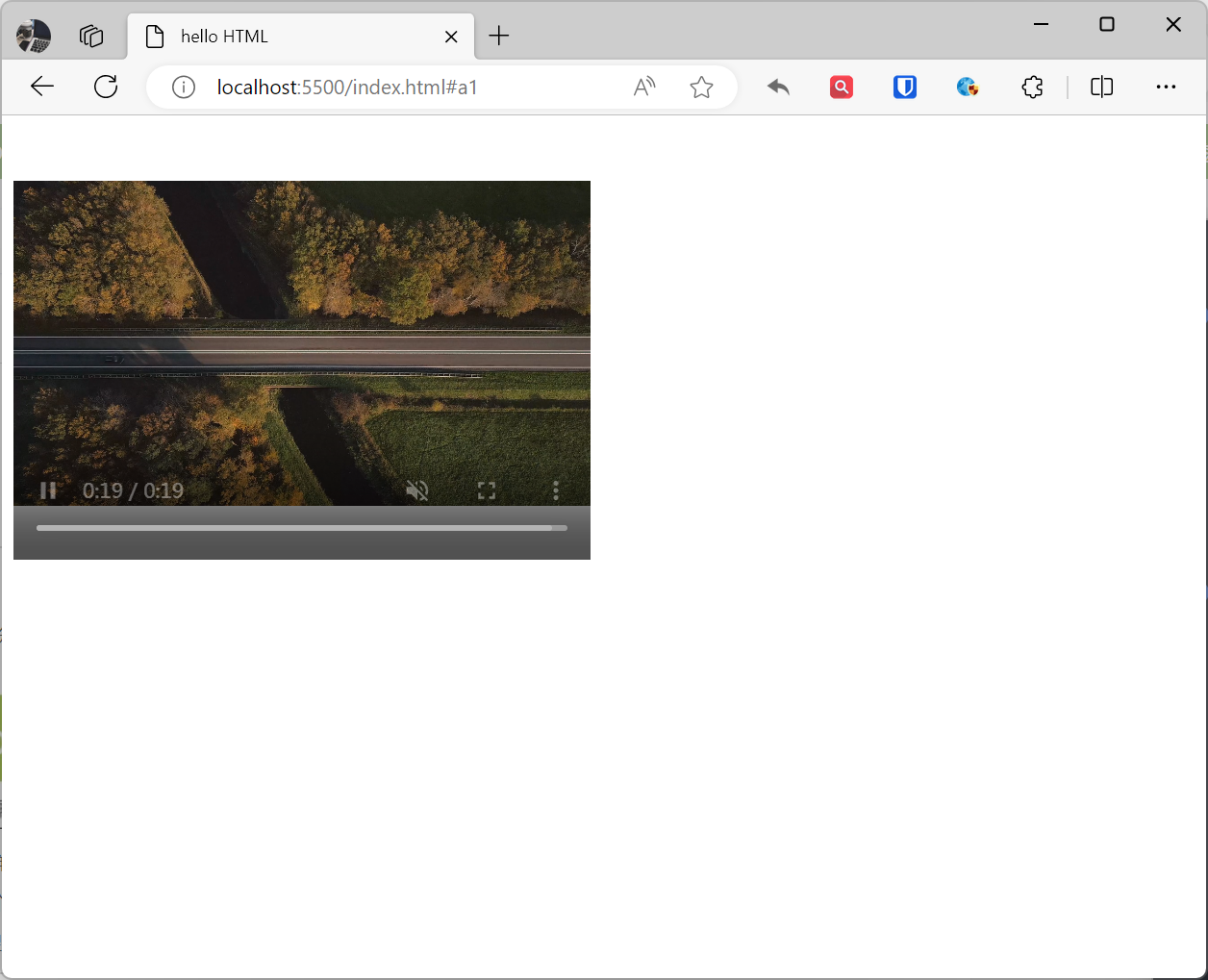
<video src="https://www.zhaojian.net/images/mp4.mp4" controls width="400" height="300" poster="https://www.zhaojian.net/images/zhaojian-avatar.png" autoplay loop muted preload="auto"> <source src="video.webm" type="video/webm"> <source src="video.ogg" type="video/ogg"></video>This example contains a video element. The video file URL is set to mp4.mp4, width is set to 400 pixels, height is set to 300 pixels, poster frame is set to zhaojian-avatar.png, autoplay is set to true, loop is set to true, muted is set to true, and preload is set to auto.
Effect:
A Very Comprehensive HTML Video Solution (Not Recommended)
The following example uses 4 different video formats. The HTML5 <video> element will try to play the video in one of mp4, ogg, or webm format. If all fail, it falls back to the <embed> element.
Example:
<video width="320" height="240" controls> <source src="video.mp4" type="video/mp4"> <source src="video.ogg" type="video/ogg"> <source src="video.webm" type="video/webm"> <object data="video.mp4" width="320" height="240"> <embed src="video.swf" width="320" height="240"> </object></video>[!Summary]
- The
<source>element provides a fallback option. If the browser doesn’t support the format, it will try to play the video file specified by the second<source>element.
Audio
The <audio> element in HTML is used to embed audio content in web pages.
Example:
<audio src="https://www.zhaojian.net/images/mp3.mp3" controls></audio>Effect:
Audio elements can also contain the following attributes:
controls: Specifies whether to display audio controls, default value istrue.autoplay: Specifies whether the audio should automatically play when loaded.loop: Specifies whether the audio should loop.muted: Specifies whether the audio should be muted.preload: Specifies whether the audio should be preloaded when loading.
Example:
<audio src="https://www.zhaojian.net/images/mp3.mp3" controls autoplay loop muted preload="auto"></audio>This example contains an <audio> element. The audio file URL is set to mp3.mp3, controls is set to true, autoplay is set to true, loop is set to true, muted is set to true, and preload is set to auto.
Effect:
The embed Element
The embed element was introduced in HTML 4.01. It can embed any type of resource, including video, audio, images, Flash, etc. The embed element requires browser support for specific plugins to display.
Example:
<embed src="Resource URL" type="Resource type">[!Summary]
- HTML5 introduced
<video>and<audio>elements to replace the<embed>element.- The
embedelement can embed any type of resource, while<video>and<audio>elements can only embed video and audio resources.- The
embedelement requires browser support for specific plugins to display, while<video>and<audio>elements do not.- The
<embed>element can still be used, but it is no longer recommended.
The object Element
The object element was introduced in HTML 4.01. It can embed any type of resource, including video, audio, images, Flash, etc. The object element uses <param> elements to specify resource attributes, such as resource width, height, background color, etc.
Example:
<object data="Resource URL" type="Resource type"> <param name="Attribute name" value="Attribute value"> ...</object>Specific differences between object and embed elements:
| Attribute | object | embed |
|---|---|---|
| Parameters | Uses <param> elements | Uses type attribute |
| Resource Type | Any type | Specific type |
| Plugin | Required | Not required |
| Functionality | Rich | Basic |
[!Summary]
- If you need to embed any type of resource and the browser supports specific plugins, you can use the
objectelement.- If you only need to embed specific types of resources and don’t need browser support for specific plugins, you can use the
embedelement.- If you only need to embed video or audio resources, it’s recommended to use
<video>or<audio>elements.<video>and<audio>elements don’t require browser support for specific plugins and provide richer functionality.
Frames
The <iframe> element is a tag in HTML used to nest one document within another document. It allows embedding one document inside another and displaying the content of the nested document. This is commonly used for embedding other web pages, videos, maps, and other content.
The <iframe> element has the following attributes:
- The src attribute defines the URL of the webpage or document to embed.
- The width attribute defines the width of the
<iframe>element. - The height attribute defines the height of the
<iframe>element. - The frameborder attribute defines whether the border of the
<iframe>element is visible. - The border attribute defines the border width of the
<iframe>element. - The framespacing attribute defines the spacing between the
<iframe>element and its surrounding content. - The marginwidth attribute defines the left and right margins of the
<iframe>element. - The marginheight attribute defines the top and bottom margins of the
<iframe>element. - The scrolling attribute defines whether the
<iframe>element allows scrolling. - The name attribute defines the name of the
<iframe>element. - The id attribute defines the ID of the
<iframe>element. - The class attribute defines the class of the
<iframe>element.
Example:
<!DOCTYPE html><html lang="en"><head> <title>HTML iframe Element</title></head><body> <iframe src="https://www.zhaojian.net"> <p>This is an iframe displaying content from zhaojian.net website.</p> </iframe></body></html>Effect: