IT Course CSS Basics 025_Margins and Padding
Margins
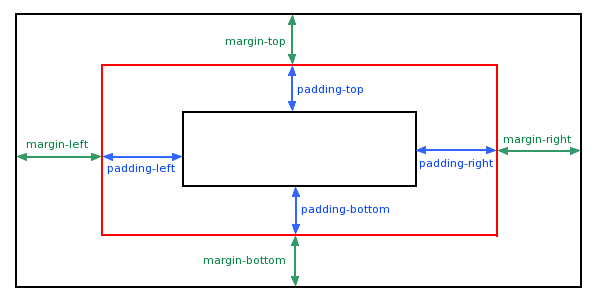
In CSS, margins and padding are two different concepts, both used to control the space between elements and affect page layout.
Margin (Outer Spacing)
Margin refers to the space between an element and its adjacent elements. Margins can be used to control the distance between elements and affect page layout. Margins have no background color, are completely transparent, and do not affect the actual size of elements. They can be positive or negative values, with units such as pixels (px), percentages (%), em, etc.
Example:
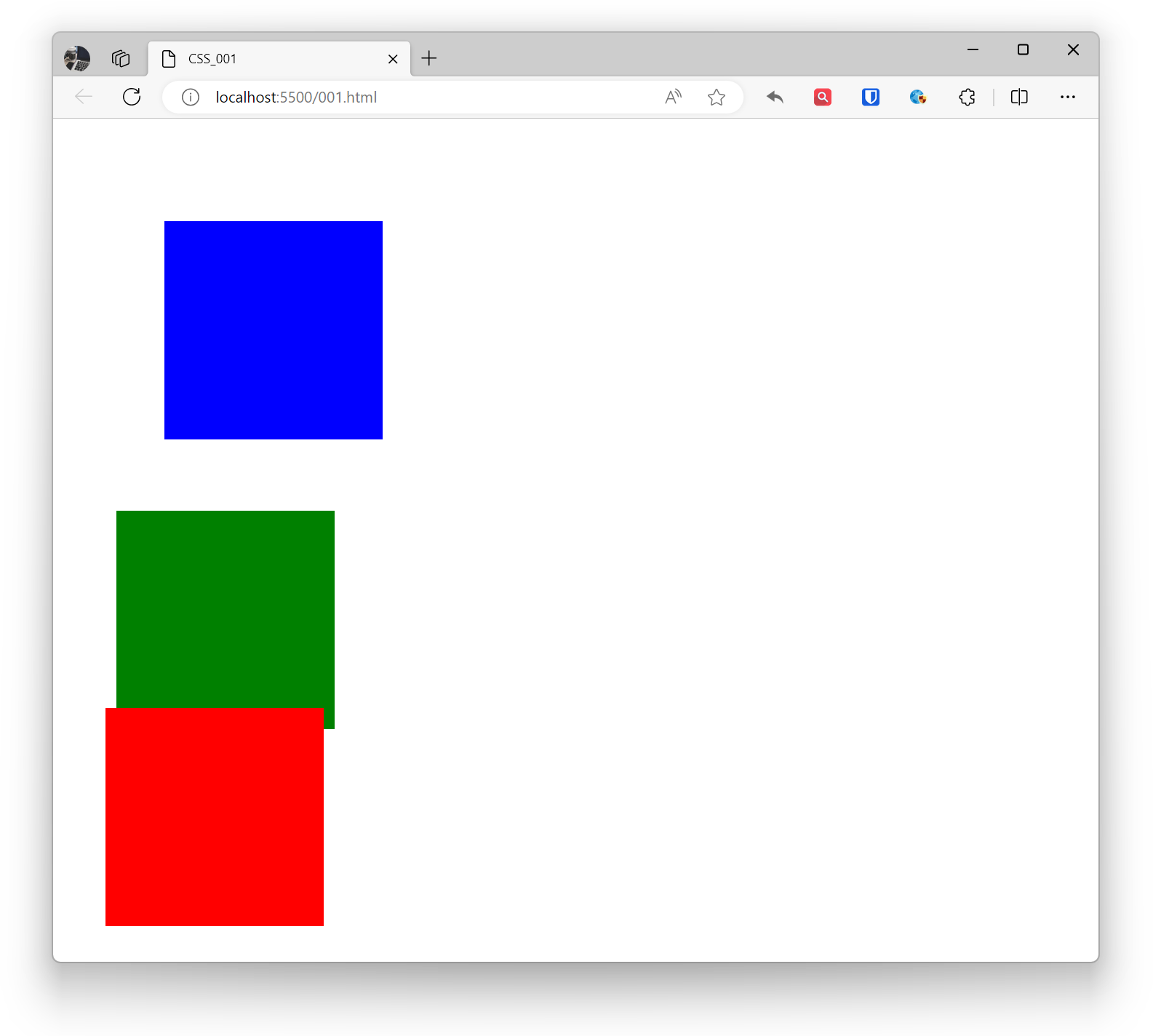
.base { width: 200px; height: 200px; } .example1 { margin: 10%; background-color: blue; } .example2 { margin: -50px 50px; background-color: green; } .example3 { margin: 10px 20px 30px 40px; background-color: red; } <div class="base example1"></div> <br> <div class="base example2"></div> <br> <div class="base example3"></div>Effect:
 You can use
 margin-top, margin-right, margin-bottom, margin-left to set the margin for a specific direction individually.
Example:
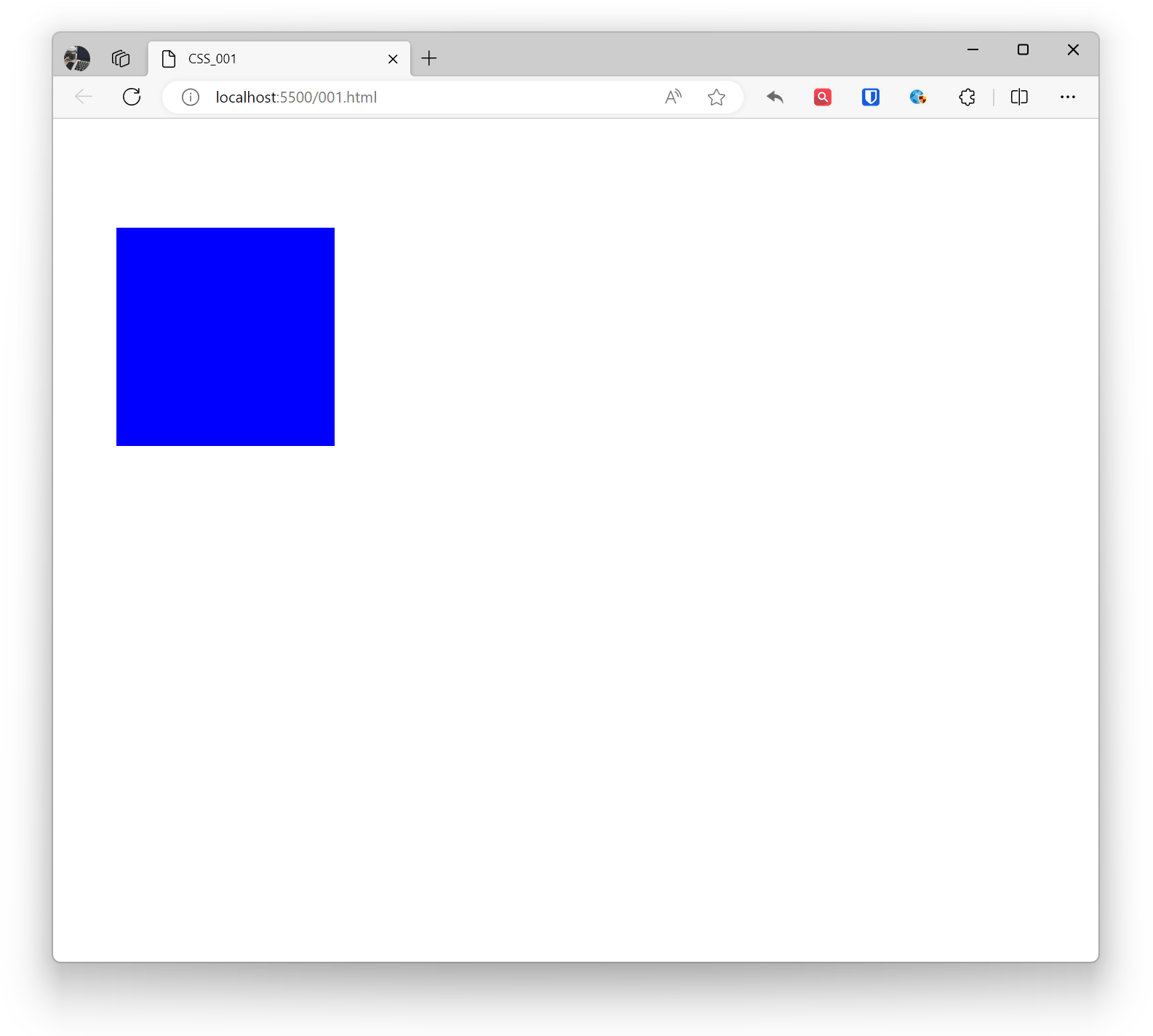
.example1 { margin-top: 100px; margin-right: 50px; margin-bottom: 80px; margin-left: 50px; background-color: blue; width: 200px; height: 200px; } <div class="example1"></div>Effect:
Padding (Inner Spacing)
Padding refers to the space between an element’s internal content and its border. Padding can be used to adjust the distance between the element’s internal content and its border, affecting the element’s dimensions and layout. Padding inherits the element’s background color and affects the actual size of the element. Negative values are not supported, with units such as pixels (px), percentages (%), em, etc.
Example:
.base { width: 200px; height: 200px; } .example1 { padding: 3%; background-color: blue; } .example2 { padding: 10px 50px ; background-color: green; } .example3 { padding: 10px 20px 30px 40px; background-color: red; } <div class="base example1">padding test</div> <br> <div class="base example2">padding test</div> <br> <div class="base example3">padding test</div>Effect:
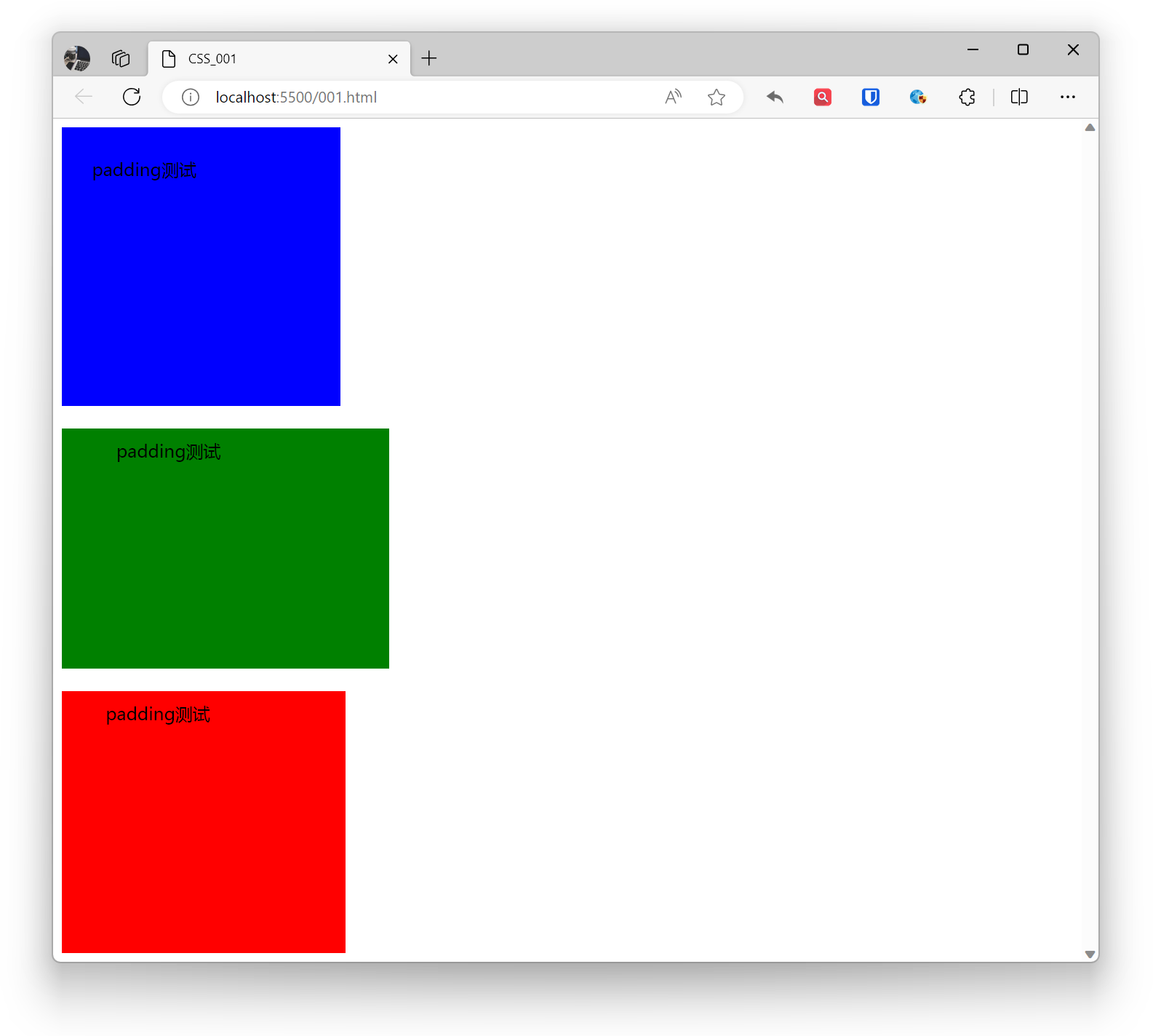 You can use
 padding-top, padding-right, padding-bottom, padding-left to set the padding for a specific direction individually.
Example:
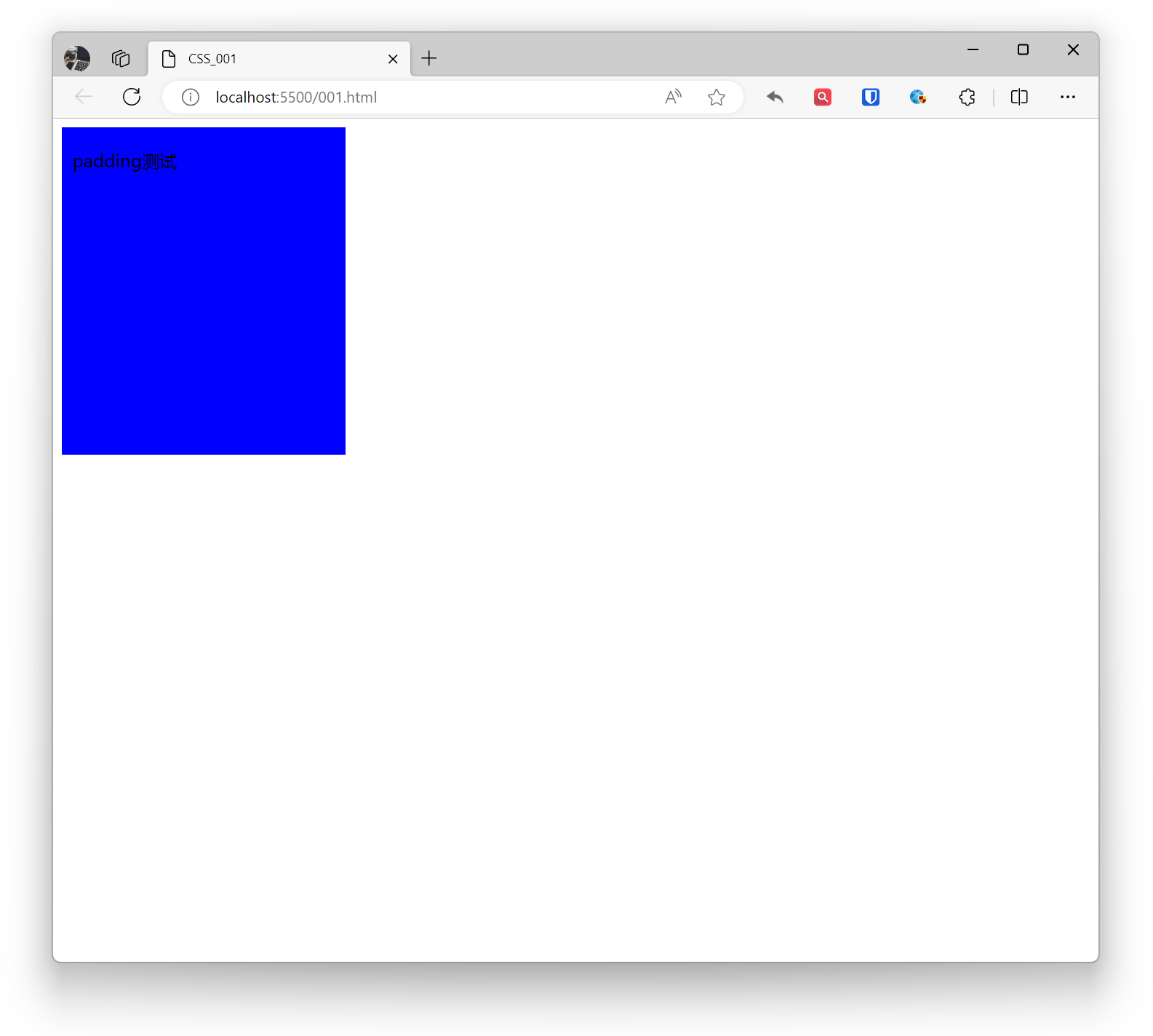
.example1 { padding-top: 20px; padding-right: 50px; padding-bottom: 80px; padding-left: 10px; background-color: blue; width: 200px; height: 200px; } <div class="example1">padding test</div>Effect: