Debian 11 Bullseye (KDE) Daily Use and Common Software Installation
I’ve been using Debian 11 recently. I’ve also used other systems before: Ubuntu, Manjaro, Fedora, CentOS - all good, but I’ve always used Debian for servers, so I decided to unify my desktop system as well.
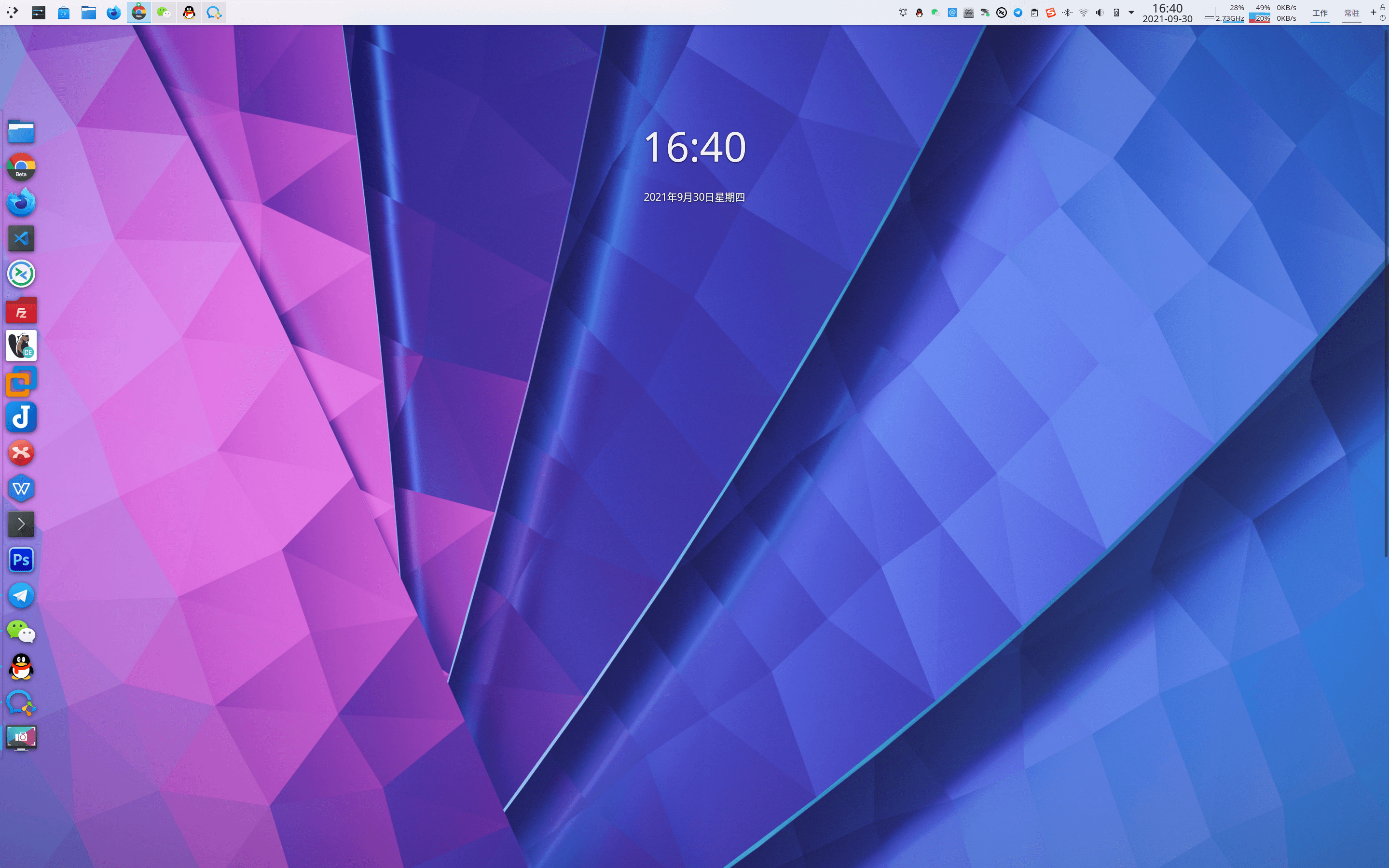
Below are the issues I encountered while using Debian 11. Time period: September 2021. Specific distribution: Debian 11 bullseye. I’m using the testing distribution, which can be called Debian bookworm, as bookworm is the next version codename after bullseye.
System environment: Version info: Debian 11 bullseye testing Desktop environment: KDE

Common software: Chrome Beta Firefox Developer Edition Visual Studio Code Remmina FileZilla (Discover) DBeaver VMware Workstation 16 Pro Joplin XMind WPS Office Photoshop CS6 deepin-wine WeChat deepin-wine WeCom deepin-wine QQ/TIM deepin-wine Sogou Input Method Dr.Web Beta Motrix
Time period: 2021-09
My software selection principles: Channel priority: System software center (Discover) > Official website > Third-party sites Software priority: Cross-platform > Open source > Free > Cracked > Paid Version priority: Development > Beta > Stable
After Debian 11 installation, first grant sudo privileges to the current user, otherwise you cannot perform system upgrades or software installation.
$ su rootEnter admin password to switch to root user$ nano /etc/sudoersAdd the following under # User privilege specification (username is the user to grant privileges)username ALL=(ALL:ALL) ALLCtrl+x (exit)Y (confirm)Chrome Beta
$ sudo apt update$ sudo dpkg -i google-chrome-beta_current_amd64.debFirefox Developer Edition
$ sudo tar -jxvf firefox-93.0b9.tar.bz2$ sudo mv firefox /opt/Visual Studio Code (VS Code dev version updates too frequently, Microsoft repo too slow on Debian 11, so installing stable)
$ sudo dpkg -i code_1.60.2-1632313585_amd64.debRemmina
$ sudo apt update$ sudo apt install remmina remmina-plugin-rdp remmina-plugin-secretFileZilla: Start > Apps > System Discover software center search and download
DBeaver
$ sudo dpkg -i dbeaver-ce_21.2.1_amd64.debVMware Workstation 16 Pro keys ZF3R0-FHED2-M80TY-8QYGC-NPKYF
$ sudo apt install build-essential linux-headers-$(uname -r)$ sudo chmod +x VMware-Workstation-Full-16.1.2-17966106.x86_64.bundle$ sudo ./VMware-Workstation-Full-16.1.2-17966106.x86_64.bundleJoplin - recommended to install via script to fix icon pinning issue
$ wget -O - https://raw.githubusercontent.com/laurent22/joplin/dev/Joplin_install_and_update.sh bashXMind
$ sudo dpkg -i XMind-for-Linux-amd-64bit-11.0.1-202106220606.debWPS Office - recommend installing 11.1.0.10161, version 11.1.0.10702 has display scaling issues
$ sudo dpkg -i wps-office_11.1.0.10161_amd64.debPhotoshop CS6
# First use requires adding deepin-wine repository$ sudo apt install com.pscs6.deepin# First use requires adding deepin-wine repository$ sudo apt install com.qq.weixin.deepinWeCom
# First use requires adding deepin-wine repository$ sudo apt install com.qq.weixin.work.deepinQQ/TIM - current TIM version tends to freeze and close automatically, so I’m using QQ recently
TIM
# First use requires adding deepin-wine repository$ sudo apt install com.qq.office.deepin# First use requires adding deepin-wine repository$ sudo apt install com.qq.im.deepinSogou Input Method
$ sudo dpkg -i sogoupinyin_2.4.0.3469_amd64.debDr.Web Linux key Dr.Web Linux stable can use beta key. Not sure why, but beta has lower version number, so I chose stable.
$ sudo chmod +x drweb-11.1.3-av-linux-amd64.run$ sudo ./drweb-11.1.3-av-linux-amd64.runSome software may have issues during installation, or need cracking - will update when I have time